Quick Start
This guide gets you from zero to running your first ABsmartly command via the MCP server in under five minutes. We'll use Claude Desktop with OAuth — the fastest path with no API keys to manage.
For other clients or API key setups, jump straight to Setup.
Prerequisites
- Claude Desktop installed (download)
- An ABsmartly account on your instance (the URL you log into, e.g.
https://your-company.absmartly.com)
1. Add the connector
In Claude Desktop, open Settings → Connectors, scroll to the bottom, and click Add custom connector.
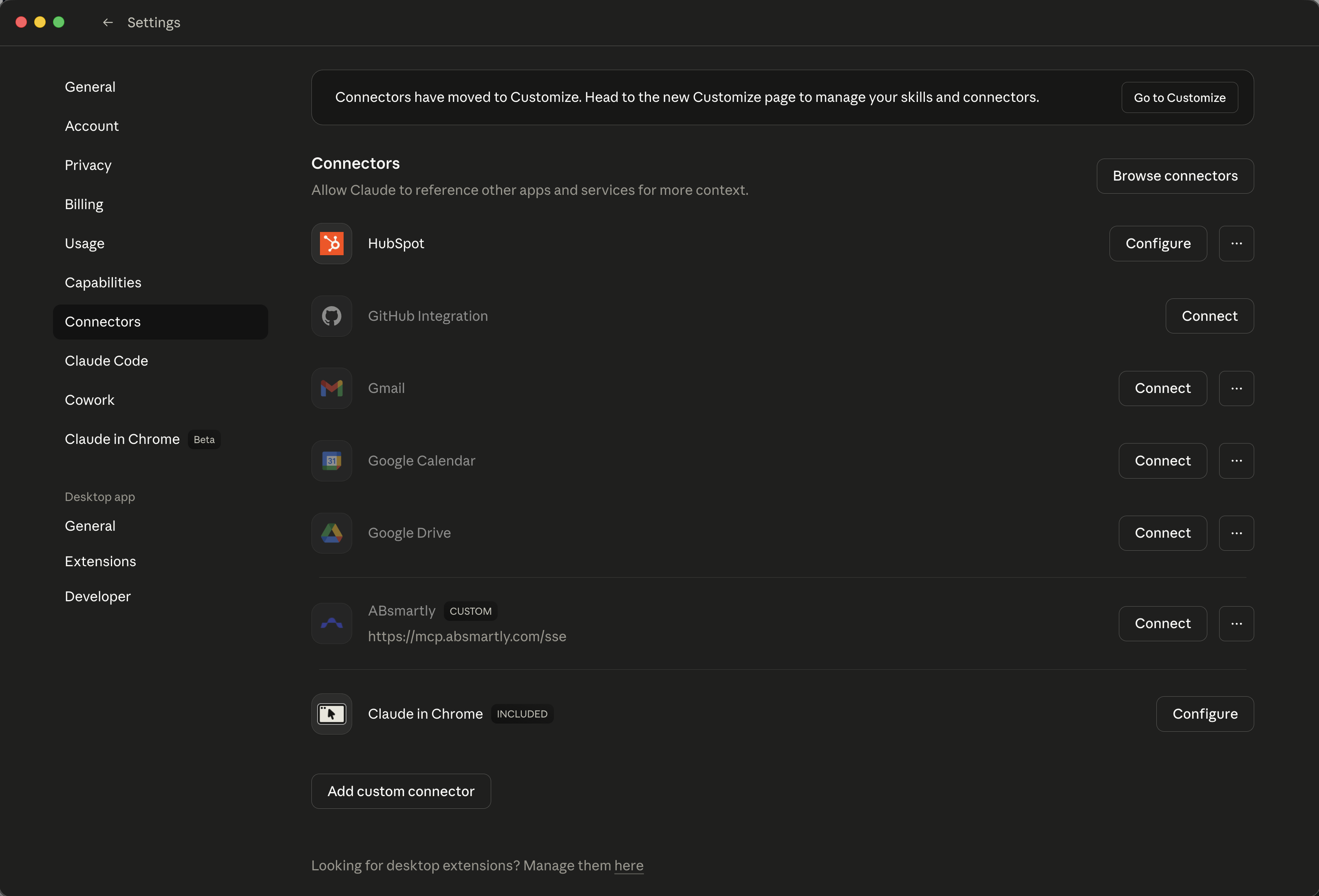
In the dialog:
- Name:
ABsmartly - Remote MCP server URL:
https://mcp.absmartly.com/sse?absmartly-endpoint=https://your-instance.absmartly.com
Replace your-instance with your ABsmartly subdomain.
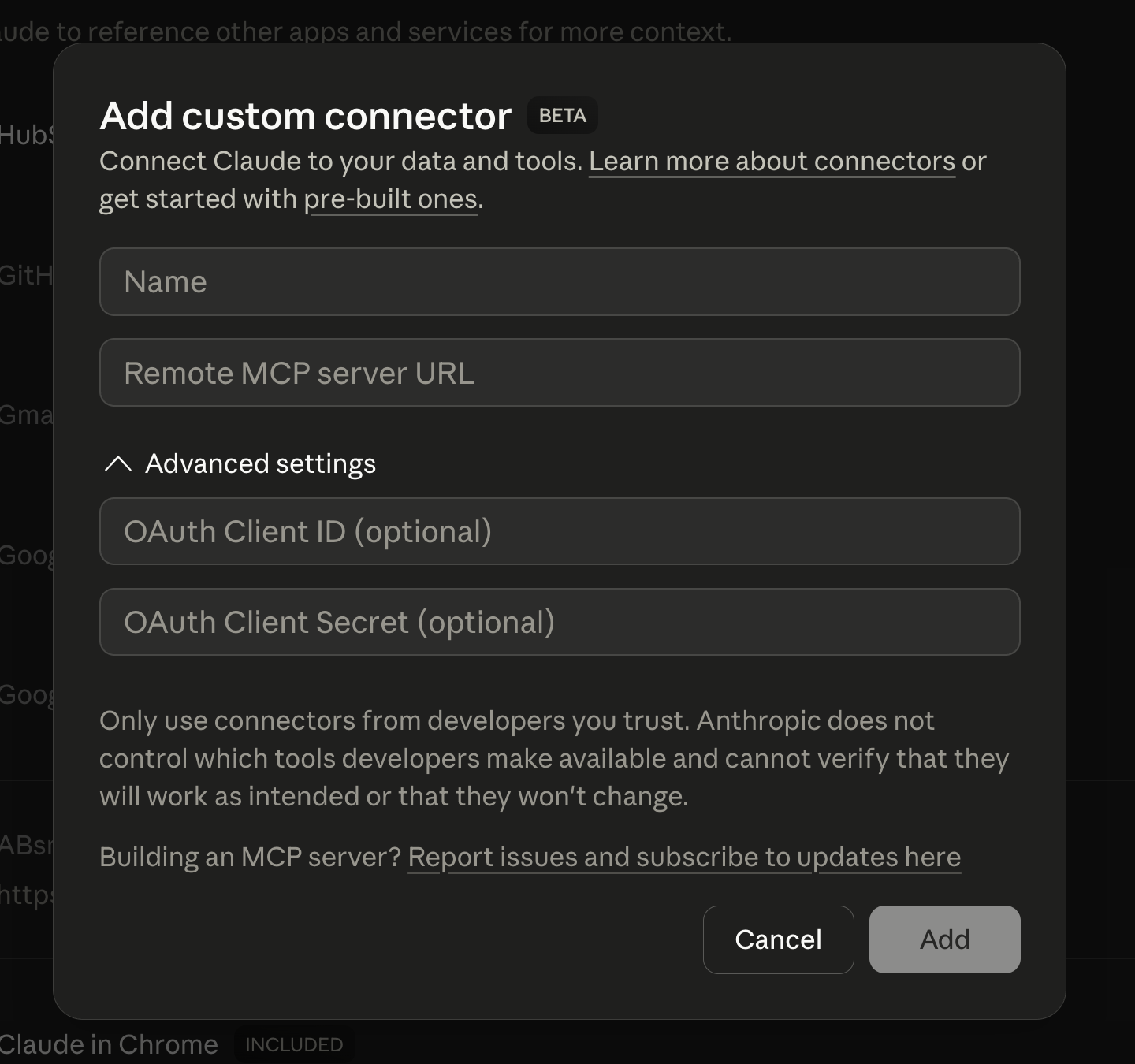
Click Add, then Connect.
2. Sign in
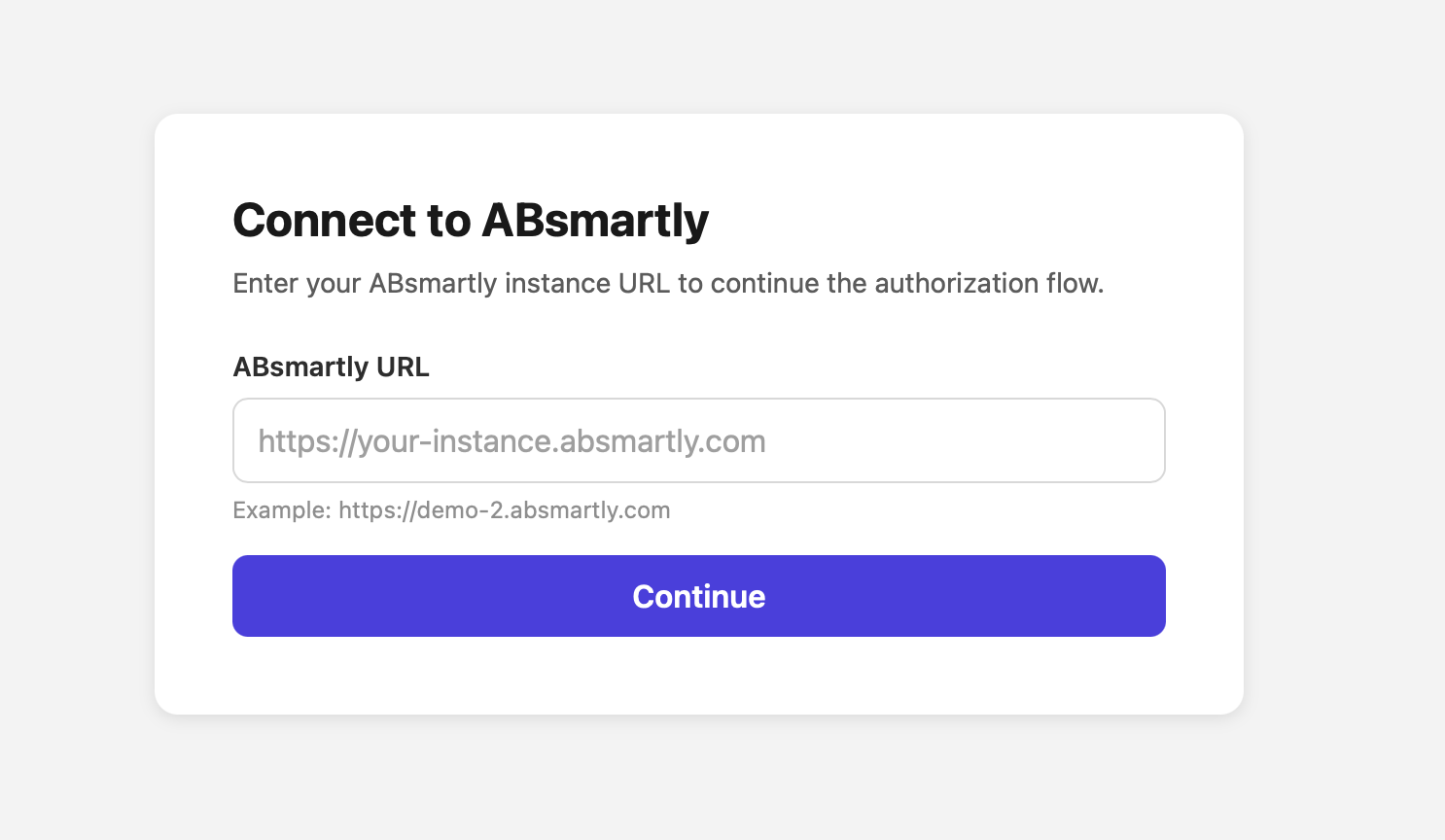
Claude Desktop opens your browser. Sign in with your normal ABsmartly credentials (SAML/SSO if your org uses it). When the browser confirms success, the connector is live.
If you didn't include absmartly-endpoint in the URL, the OAuth flow prompts
you for it in the browser before login.
3. Verify the connection
Back in Claude Desktop, start a new chat and try:
Are we authenticated with ABsmartly?
The assistant calls get_auth_status and returns your email, name, instance
endpoint and auth type (OAuth).
4. Run your first command
Show me the experiments that are currently running on ABsmartly
Behind the scenes the assistant calls:
execute_command(group: "experiments", command: "listExperiments",
                params: { state: "running" })
It returns the list, formatted for chat.
5. Try something useful
A few prompts that work out of the box (and don't change any state):
List all metrics that are pending review
Which teams own experiments that have been running for more than 14 days?
Show me the goals defined for the "checkout" application
When you're ready to create or change something, the assistant will pause
and show a preview / confirmation step — destructive actions like start,
stop, archive, and delete always require explicit confirmation before
they run.
Where to go next
- Usage Examples — more natural-language prompts that work today
- Tools Reference — the full set of commands, including experiment creation from markdown templates
- Authentication — switch to API key auth (for CI or headless use), or learn about the security model
- Troubleshooting — if the connection isn't working, start here