Creating an experiment using the ABsmartly LaunchPad
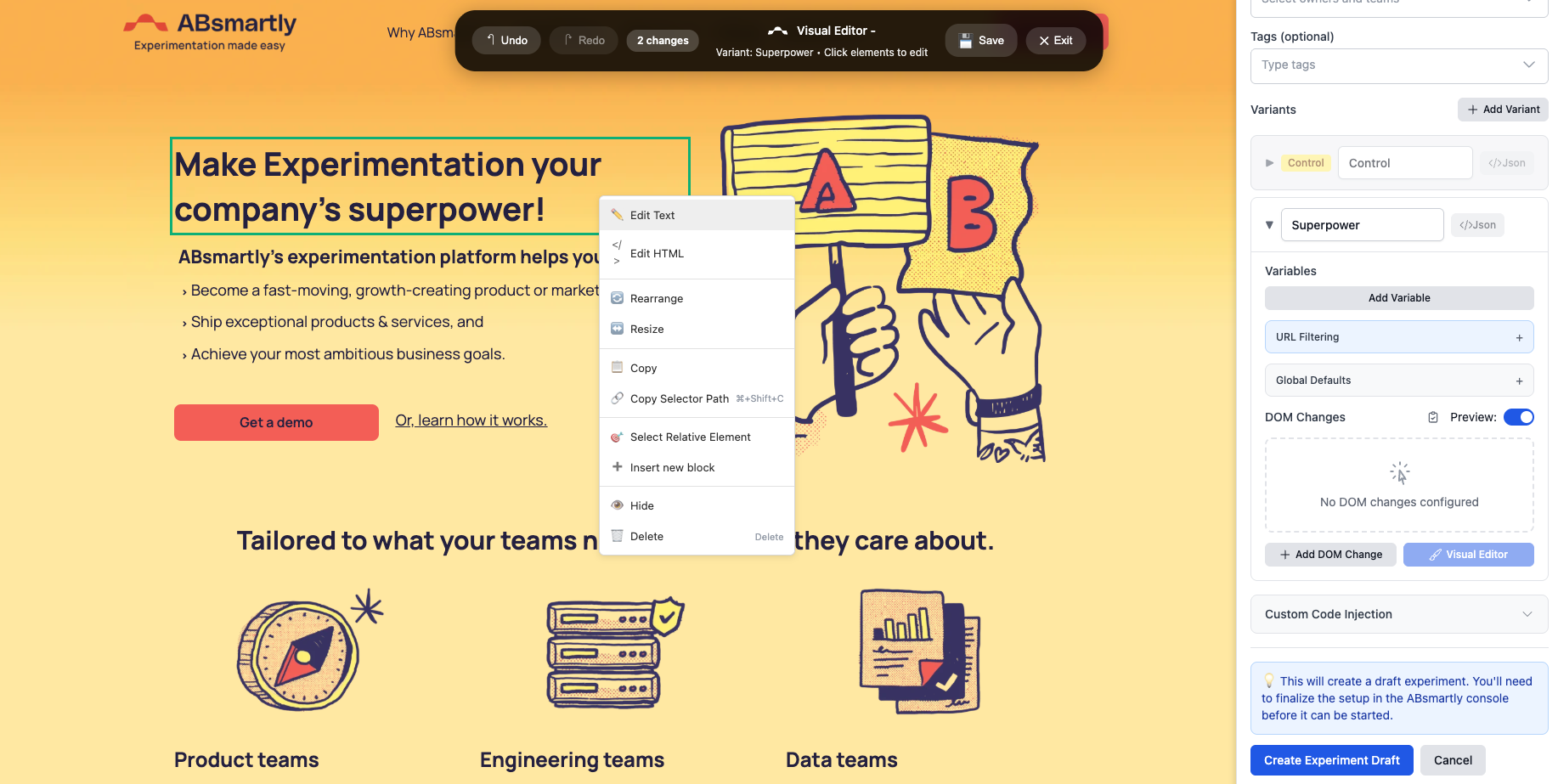
This guide explains how to create a new experiment from scratch using the ABsmartly LaunchPad.
This guide assumes that you already installed and configured the LaunchPad.
Experiment Metadata
Begin by defining the core information for your experiment.
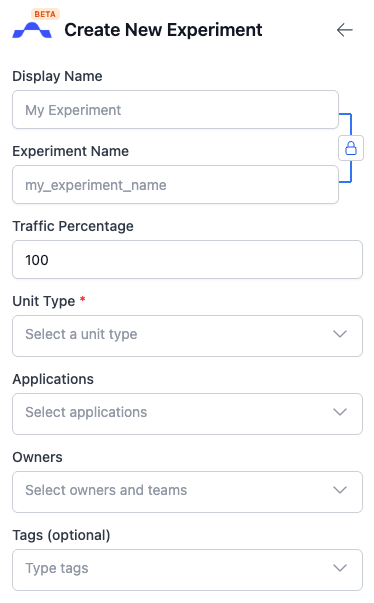
| Field | Description | Tips |
|---|---|---|
| Display Name * | The name displayed in the LaunchPad & in the web console. | Use a clear, human-readable name that reflects the purpose of the test. |
| Experiment Name * | The technical identifier used in your implementation code. | Keep this concise, lowercase, and use underscores (e.g. checkout_flow_test). |
| Traffic Percentage | The proportion of total eligible traffic that will be included in the experiment. | Unless you have a good reason, keep it at 100%. |
| Unit Type * | Determines how visitors are tracked (email, user id, anonymous id, etc). | Choose the same unit type you use in your SDK implementation. |
| Applications | The applications where this experiment will run. | The same experiment can run across multiple apps or sites. |
| Owners | Team(s) responsible for creating and maintaining the experiment. | Helps accountability and tracking in large organizations. |
| Tags | Optional keywords for organizing and filtering experiments. | Tag experiments by feature, product area, or release cycle. |
All fields marked with * are required before proceeding.
Variants
Each experiment requires at least a control variant and one or more treatment variants. By default, experiments are created with 1 treatment variant.
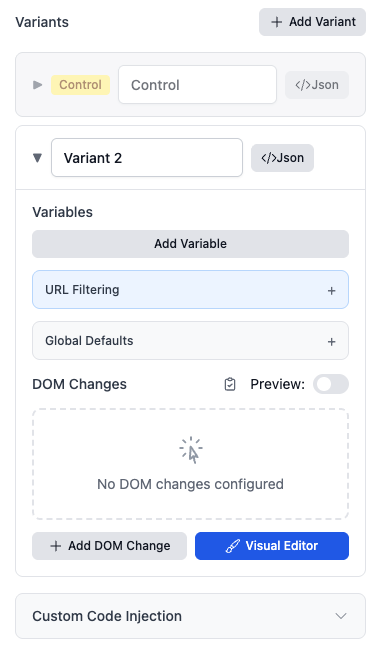
Add Variants
Click Add Variant to add a new variant to your experiment.
Note: When using the LaunchPad, traffic is always split equally between all the variants. To change this, you can open the experiment on the web console and change the traffic split.
Configuring the Variants
Fine-tune the behavior of each variant in this section.
Variant Variable
URL Filtering
Use URL Filtering to define exactly where the experiment is active. Rules can target different parts of the URL, support multiple match types, and can be combined as include or exclude conditions.
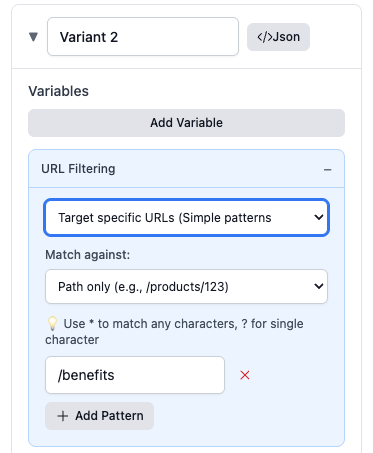
What you can match
- Hostname / subdomain (e.g.,
www.example.com,staging.example.com) - Path (full path or segments, e.g.,
/checkout,/product/*) - Query parameter key (e.g.,
utm_source) - Query parameter value (e.g.,
utm_source=ads) - Protocol (e.g.,
httpsonly) - Fragment (the part after
#)
Match types available
- equals – matches the value exactly
- starts with – value begins with a string (e.g.,
/checkout) - contains – value contains a substring (e.g.,
/promo/) - matches wildcard – supports
*for any sequence (e.g.,/product/*/reviews) - matches regex – advanced pattern using regular expressions
Include vs. exclude
- Include rules explicitly allow the experiment to run when conditions are matched.
- Exclude rules prevent the experiment from running when matched, even if an include would otherwise match.
Combining multiple rules
- Rules within the same group are evaluated using AND (all must match) unless otherwise indicated in the UI.
- Multiple groups are evaluated using OR (any matching group activates the experiment).
- Drag to reorder groups when precedence matters.
Examples
| Goal | Rule(s) |
|---|---|
| Run on all product pages | Include → Path matches wildcard /product/* |
| Exclude the success page | Exclude → Path equals /checkout/success |
| Only when a campaign is present | Include → Query key equals utm_campaign |
| Only for a specific campaign value | Include → Query key utm_campaign AND Query value equals spring_sale |
| Only on a specific subdomain | Include → Hostname equals staging.example.com |
| Advanced pattern | Include → Path matches regex ^/search\\?q=.*$ |
Tips
- Prefer wildcards or starts with for simple patterns; reach for regex only when necessary.
- Keep rules as specific as needed to avoid unintended exposure (e.g., filter to
/checkout/*instead of/).
Global Defaults
Set default values that apply across all variants unless explicitly overridden.
This provides a consistent baseline configuration for new variants.
| Setting | Description |
|---|---|
| Use !important flag | The changes will overwrite existing CSS. |
| Wait for element (lazy-loaded) | The changes will only be applied once the element has appeared in the DOM. |
| Persist styles | The changes will be reapplied after the JS framework (React/Vue/Angular) overwrites them. |
DOM Changes
Use DOM Changes to capture all the changes made to the page.
Manual modification
Use DOM Changes to apply direct modifications to page elements for each variant.
These actions are configured manually in the Add DOM Changes panel.
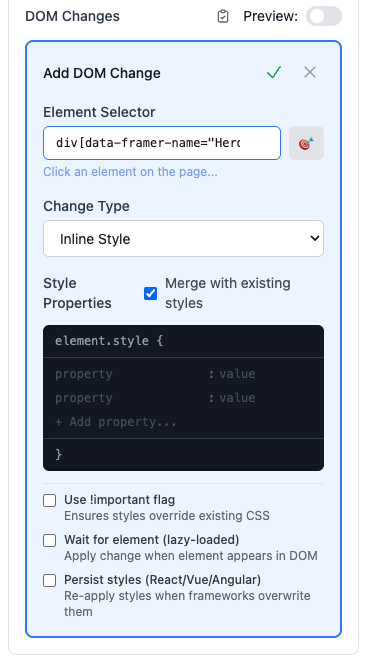
| Change Type | Description | Typical Use | Tips |
|---|---|---|---|
| Text | Replaces the visible text content of the selected element. | Update headings, labels, or button copy. | Keep copy short and consistent with the page tone. |
| Inline Style | Applies inline CSS to the element. | Adjust colors, spacing, or font styles. | Use sparingly—inline styles override other CSS rules. |
| Stylesheet | Adds CSS rules that apply across the page for this variant. | Introduce reusable style changes. | Prefix selectors with a variant class to avoid conflicts. |
| Class | Adds, removes, or toggles CSS classes. | Trigger existing site styles without editing CSS directly. | Prefer this when styles already exist in your design system. |
| Attribute | Adds, edits, or removes HTML attributes. | Modify href, alt, or aria-* values. | Maintain accessibility; use valid attributes. |
| HTML | Edits or replaces the inner HTML of an element. | Insert markup like links or emphasized text. | Avoid complex structures; use cautiously. |
| Javascript | Injects and runs Javascript code. | Add dynamic behavior or event handling. | Keep scripts short; test thoroughly before rollout. |
| Move/Reorder | Moves or repositions elements within the page. | Adjust layout or hierarchy of elements. | Ensure layout integrity across breakpoints. |
Toggle Preview Mode to verify the update before saving.
Visual Editor
The Visual Editor allows interactive, point-and-click modifications to page elements without writing code.
Each action updates the page in real time and can be previewed before saving.
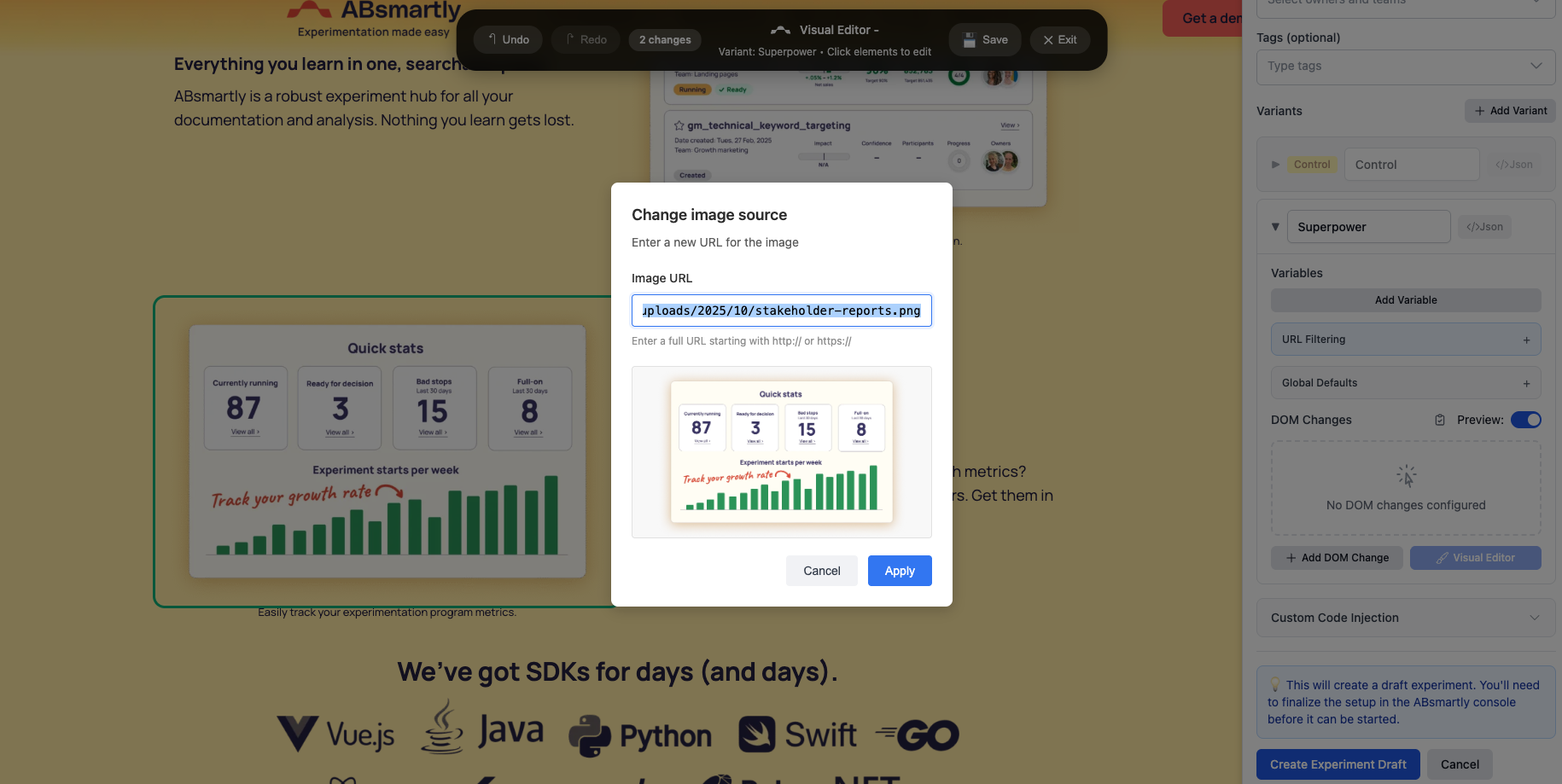
| Action | Description | Typical Use | Tips |
|---|---|---|---|
| Edit Text | Modify the visible text of any selected element. | Update titles, labels, or button copy directly on the page. | Keep copy changes small for easier comparison and review. |
| Edit HTML | Edit the HTML content of a selected element. | Add inline markup like links or emphasis. | Avoid large structure edits; use Insert New Block for new elements. |
| Rearrange / Resize | Drag elements to a new location or resize them. | Change layout or adjust visual proportions. | Test across screen sizes to maintain responsive design. |
| Copy / Copy Selector Path | Duplicate an element or copy its CSS selector. | Reuse elements or locate them for CSS rules. | Useful for targeting elements in Code Injection or Stylesheets. |
| Select Relative Element | Switch the selection to a parent, sibling, or child element. | Target nearby elements that are hard to select directly. | Ideal for dynamic layouts or repeating structures. |
| Insert New Block | Add a new element before, after, or inside another. | Insert promotional banners, notices, or new CTAs. | Keep additions minimal and consistent with the existing design. |
| Hide / Delete | Hide or remove the selected element. | Temporarily disable non-essential UI elements. | Use Hide for reversibility; Delete removes the element from the DOM. |
Code Injection
Apply Javascript or CSS snippets directly using Code Injection.
- Open the Code Injection panel.
- Choose Javascript or CSS mode.
- Enter your custom code.
- Save and preview the effect in real time.
Tip: Keep injected scripts lightweight; complex logic is better implemented in your main app code.
Create the Draft and Finalize the Setup on the Web Console
When configuration is complete:
- Review all experiment metadata and variant definitions.
- Click Create Draft to save a working version.
- Use Preview Mode to validate expected behavior.
- Finalise the setup on the web console (add metrics, etc)
- Start the experiment in web console
Result
You have now:
- Configured experiment metadata.
- Created and customized variants.
- Applied DOM and code changes.
- Saved and finalized the setup.
The experiment is ready for QA validation and launch monitoring.