Getting started with the ABSmartly LaunchPad
Before you can use the ABsmartly's LaunchPad, you first need to install the Chrome extension and setup the SDK plugin.
The ABsmartly Chrome Extension
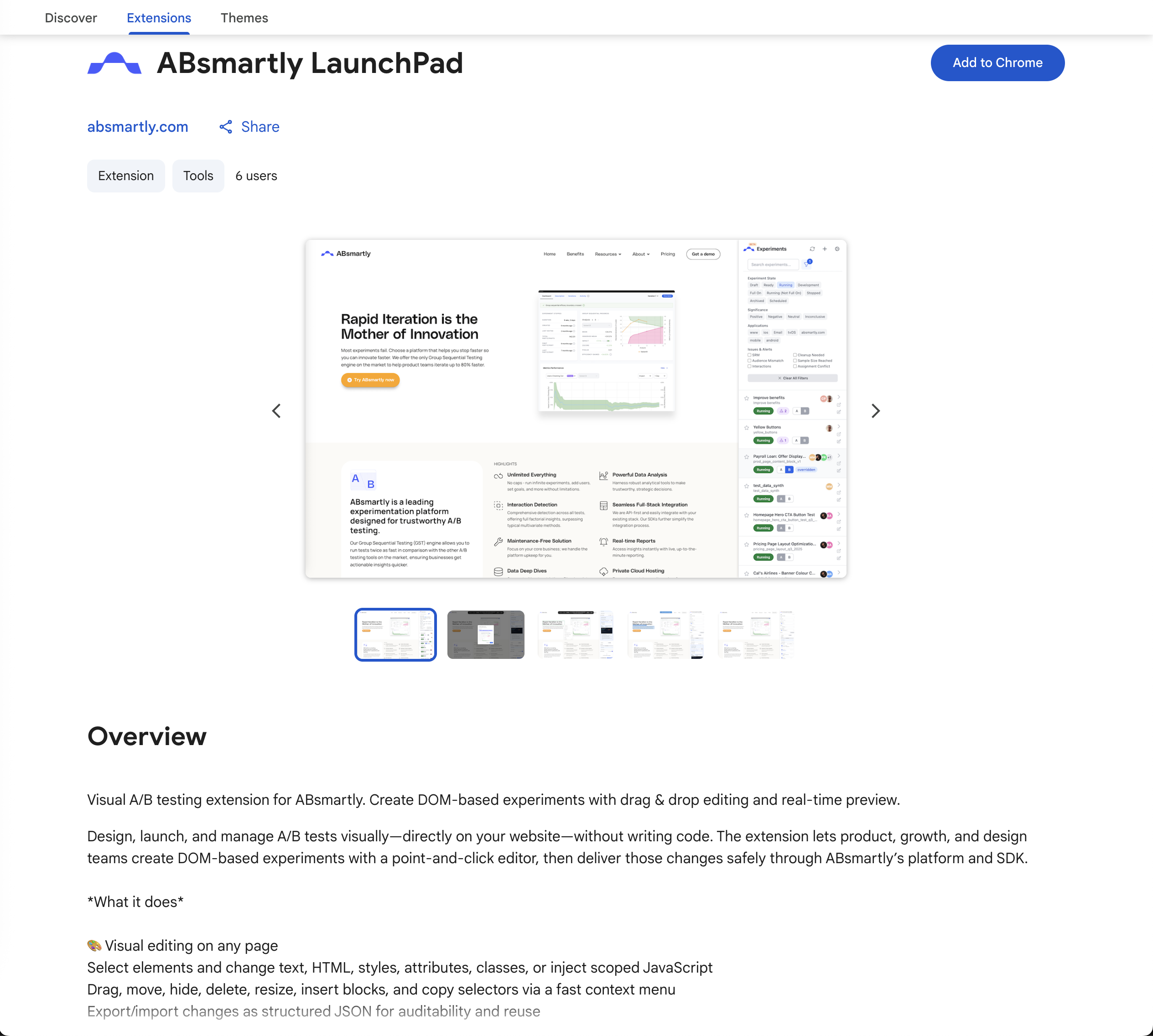
First you need to download and install the LaunchPad as a Chrome extension. This will make it possible to create DOM changes experiments using the Visual Editor.
Installation
- Go to the Chrome Store
- Search for ABsmartly LaunchPad
- Click Add to Chrome
- Click on the Chrome Extension's icon
- Pin the ABsmartly LaunchPad
Configuring the Chrome Extension
- Click on the LaunchPad's icon to open the extension
- Click Configure Settings.
- Enter your ABsmartly endpoint address. For example
https://demo-2.absmartly.com - Select JWT from Browser Cookie to use the ABsmartly cookie.
- Click Authenticate in ABsmartly to connect to your ABsmartly's instance.
- You are now ready to use the ABsmartly's LaunchPad to create new experiments.
- Check our how-to guide to create your first experiment.
How It Works
The LaunchPad provides a visual editor to create DOM changes which will be applied by the ABsmartly's SDK once the experiment is running.
The SDK Plugin
To make it possible for the ABsmartly SDK to applies the DOM changes to your website when the experiment is running, you need to install the DOM Changes plugin and initialize it after your ABsmartly SDK context is ready.
Installation
npm install @absmartly/sdk-plugins
Basic Setup
import { SDK, Context } from '@absmartly/javascript-sdk';
import { DOMChangesPluginLite as DOMChangesPlugin } from '@absmartly/sdk-plugins';

// Initialize your SDK and context
const sdk = new SDK({
  endpoint: 'YOUR_ENDPOINT',
  apiKey: 'YOUR_API_KEY',
  environment: 'YOUR_ENVIRONMENT',
  application: 'YOUR_APPLICATION',
});

const context = sdk.createContext({ units: { absId: 'your-unit-id' } });

// Wait for context to be ready
await context.ready();

// Initialize DOM changes plugin
const domPlugin = new DOMChangesPlugin({
  context: context,
  autoApply: true,        // Automatically apply DOM changes
  spa: true,              // Enable SPA support for dynamic content
  visibilityTracking: true, // Track element visibility
  debug: false,           // Enable debug logging
});

await domPlugin.ready();
Configuration Options
- context: Your ABsmartly SDK context instance (required)
- autoApply: When
true, automatically applies DOM changes for assigned variants - spa: When
true, observes DOM changes and reapplies changes for single-page applications - visibilityTracking: When
true, tracks when modified elements become visible - debug: When
true, enables detailed console logging for troubleshooting
How It Works
The DOM Changes plugin:
- Reads DOM change configurations from your experiment variants
- Automatically applies the changes for the user's assigned variant
- Continues to monitor and reapply changes as the DOM updates (when
spa: true) - Tracks element visibility for analytics (when
visibilityTracking: true)
This plugin works seamlessly with the ABsmartly LaunchPad extension, which allows you to create and manage DOM changes visually through your browser.