Personal API Keys
Every user can create their own personal API keys from their user profile. A personal API key authenticates as that specific user and is commonly used for the ABsmartly CLI, scripts, and other tools that need to act on a user's behalf.
Personal keys vs. application API keys
Personal API keys are different from the application/SDK API keys managed under Settings > API Keys. Application API keys authenticate the ABsmartly SDKs and are scoped to specific permissions (SDK requests, SDK context endpoint, fetching experiment data). Personal API keys authenticate as a user and carry that user's own permissions — they don't have separate scopes to configure.
Creating a Personal API Key
- Click on your user avatar in the bottom of the left-hand navigation.
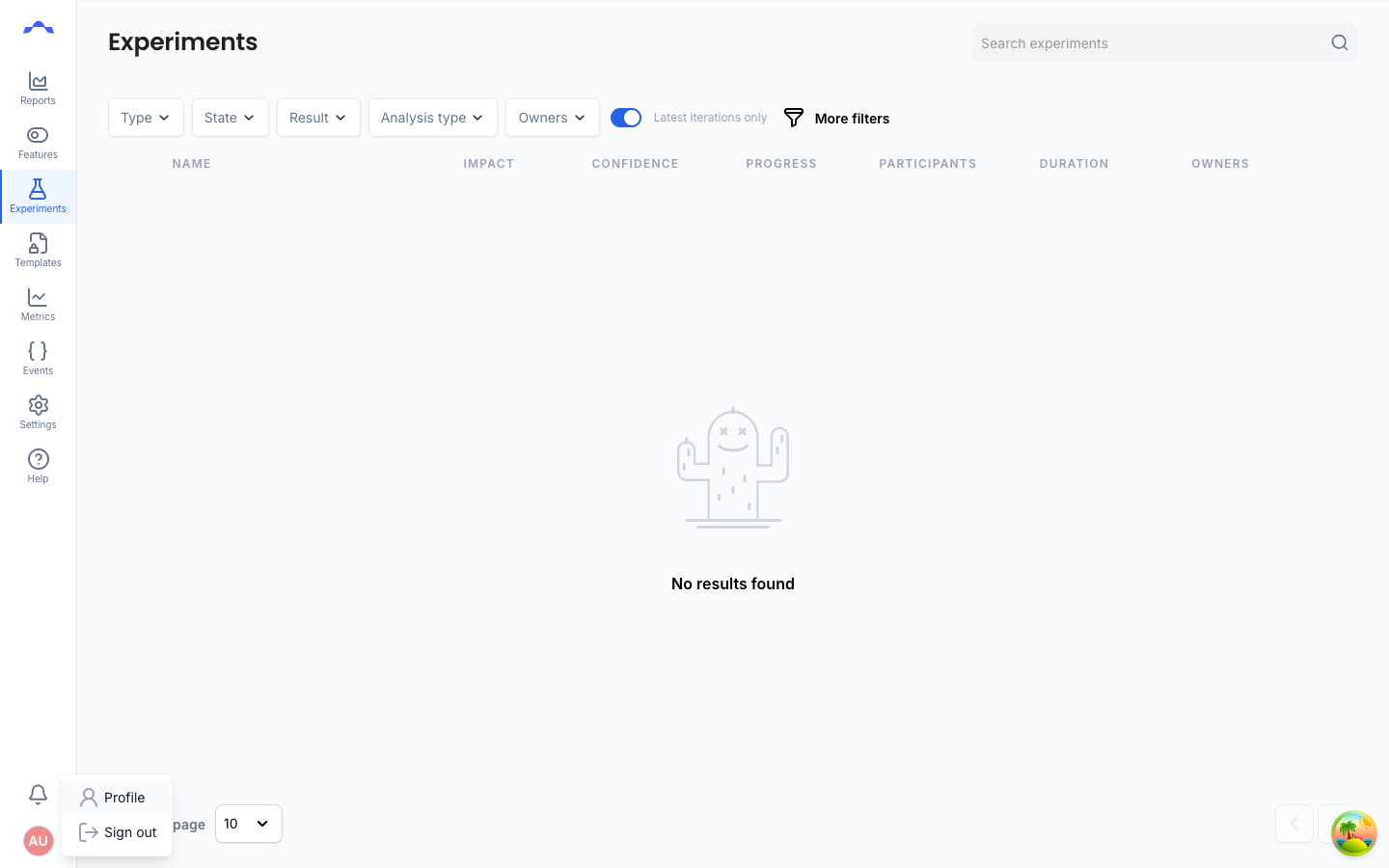
- Click Profile to go to your user profile page.
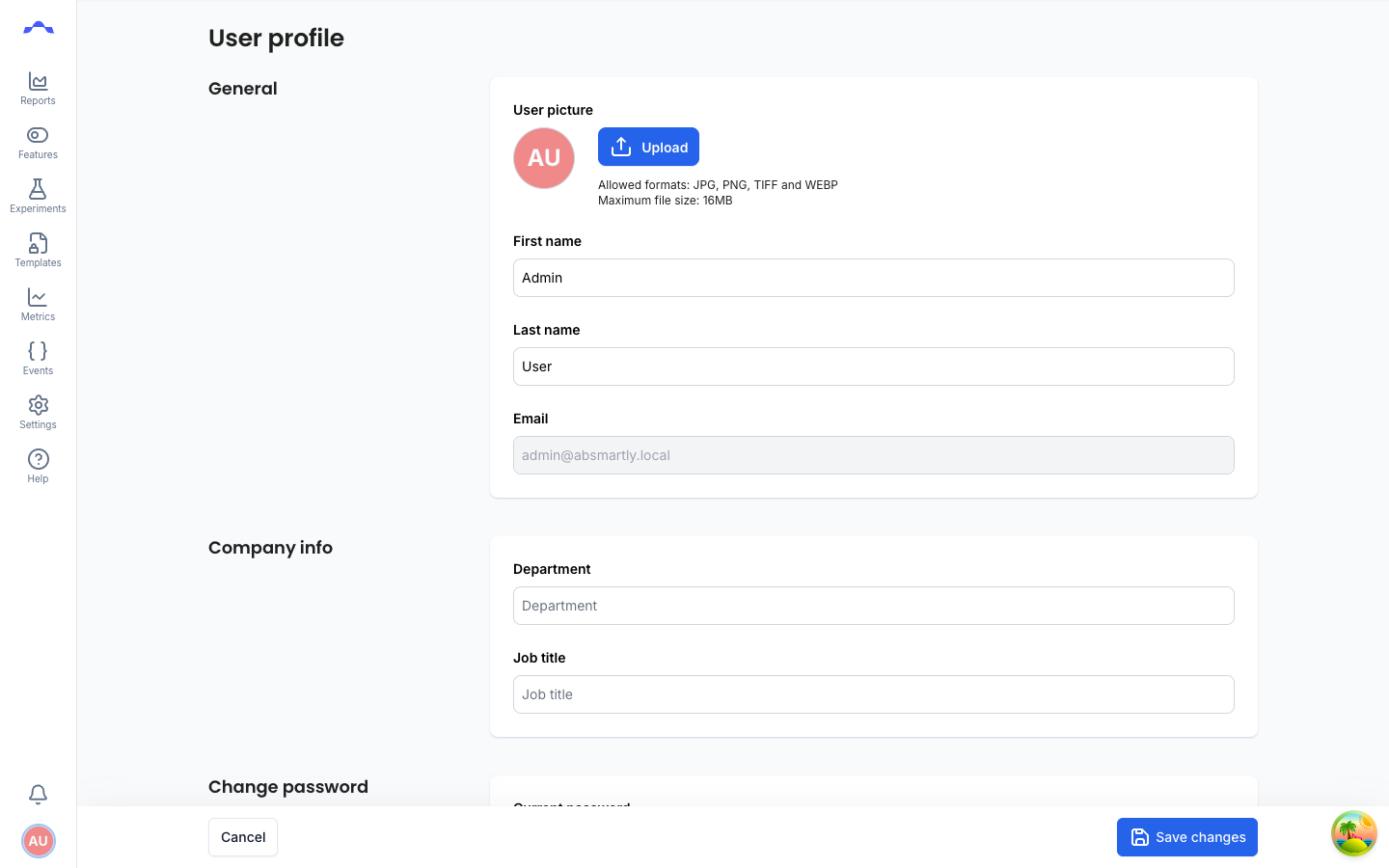
- Scroll down to the API keys section.
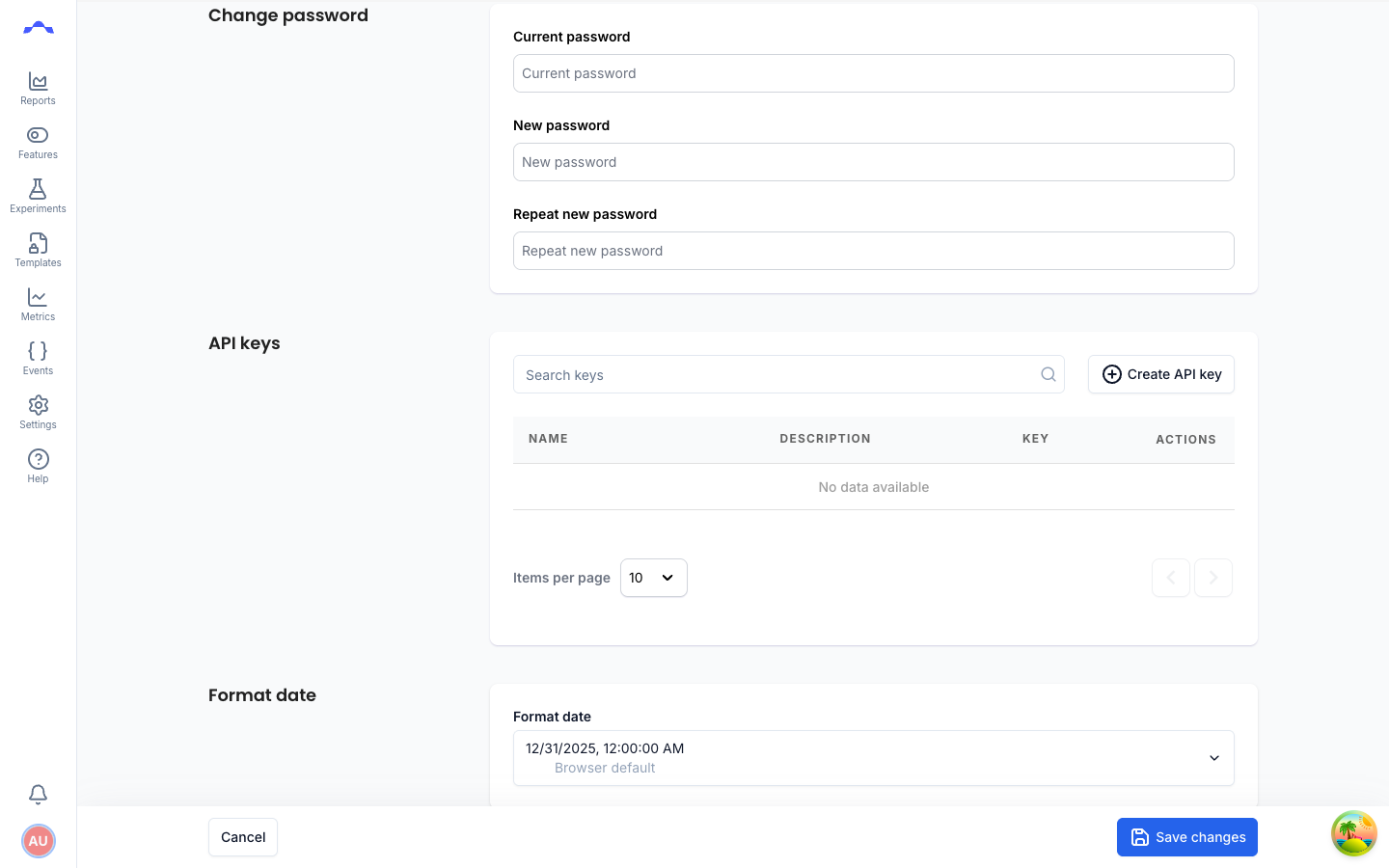
- Click Create API key. In the Add API key dialog, give the key a Key name and an optional Description to help you identify what it's used for.
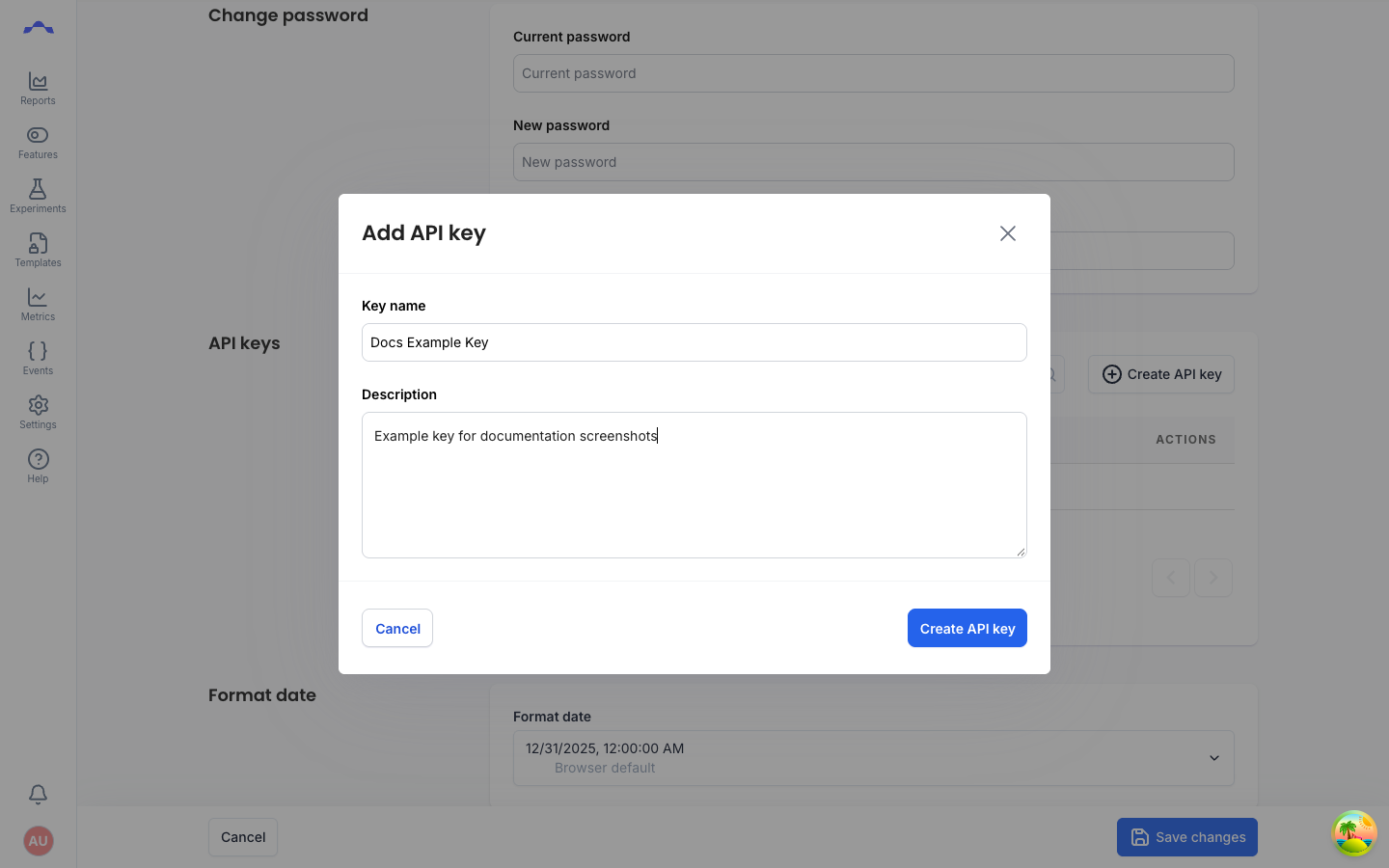
- Click Create API key. The key's value is shown once — copy it now using the copy button next to it, since you won't be able to see it again after closing this dialog.
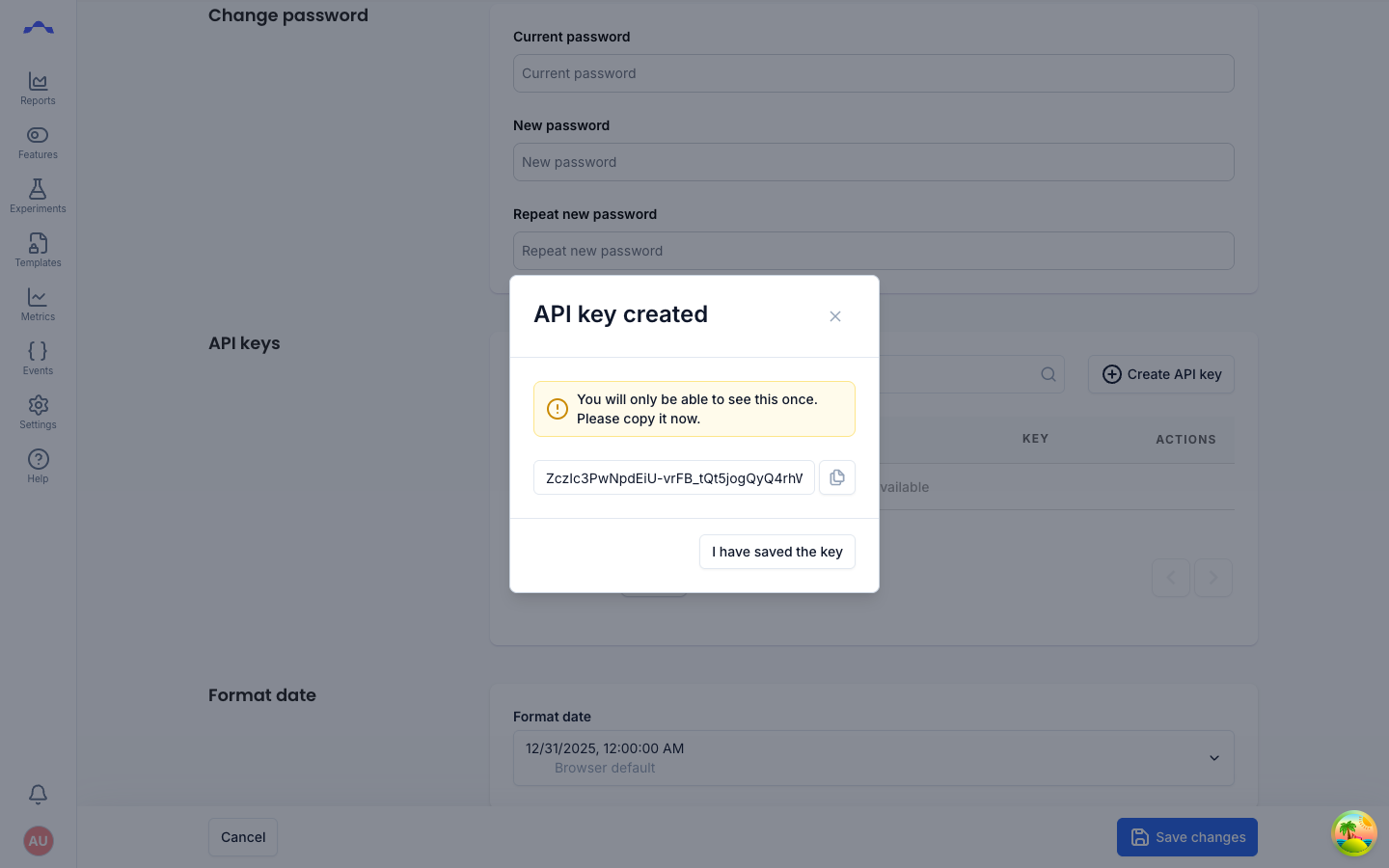
- Click I have saved the key to close the dialog. Your new key now appears in the API keys list, with its value masked.
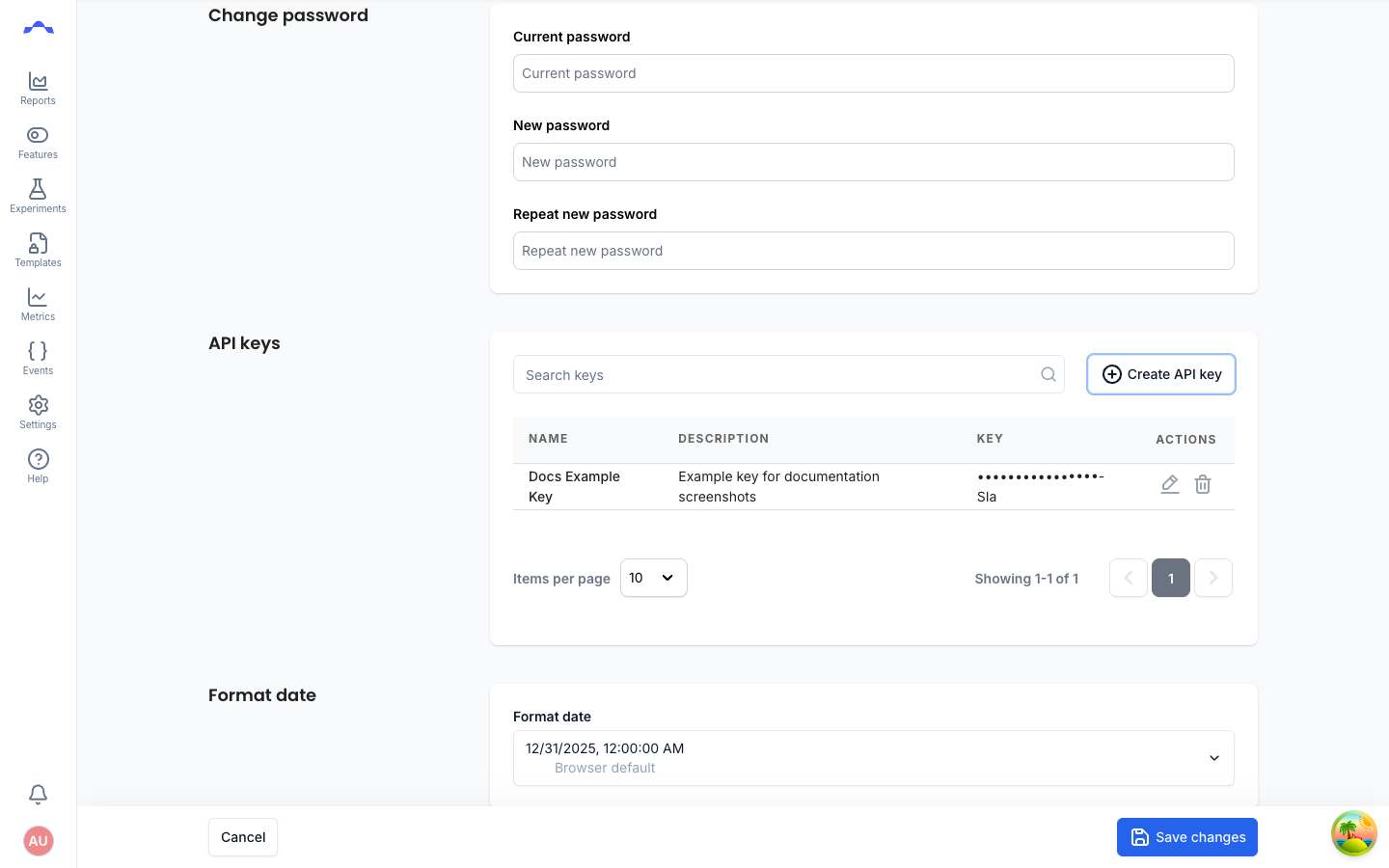
From the list you can also edit a key's name and description, or delete it, using the action icons on the right of each row.