Downloading Events
Raw event data can be downloaded directly from an experiment's overview page or from the Events Page.
flags column depends on which export you useExperiment-overview exports are already filtered to effective participants, so
you can use them as-is. Events-page exports are raw and still include
non-participants, so you'll need the flags field
to filter them. Count a raw export without it and your participant numbers come
out too high, and one visitor can show up on more than one variant. Each section
below spells out which case applies.
From the Experiment's overview
Downloading events data directly from an experiment makes it easy to download all experiment related data in a single file directly into your computer.
To download an experiment's raw event data
- Navigate to an experiment's overview.
- Click the ... in the top right.
- Select
Export Datafrom the dropdown. This option will only be visible if you have the correct permissions to download raw data. - An export request is made a processed asynchronously.
- When the export file is ready, a notification will show on the report's activity tab.
- Click on the link to download the raw data file.
The link to download the file is only valid for 30 days. A new request can be made if the link has expired.
An experiment export is already filtered to effective exposures. Ineligible
visitors, bots, and overridden and rule-override assignments are stripped out for
you, so every row you get is a participant ABsmartly counts. There's no flags
mask to apply.
From the Event's page
Downloading events from the Events page makes it possible to select which events will be downloaded and does not restrict events from a single experiment.
An events-page export isn't filtered the way an experiment export is, so
non-participants are still in there. Apply the
flags field yourself before you count
participants.
Exporting Events
To set up a new export, click Export in the top-right hand corner.
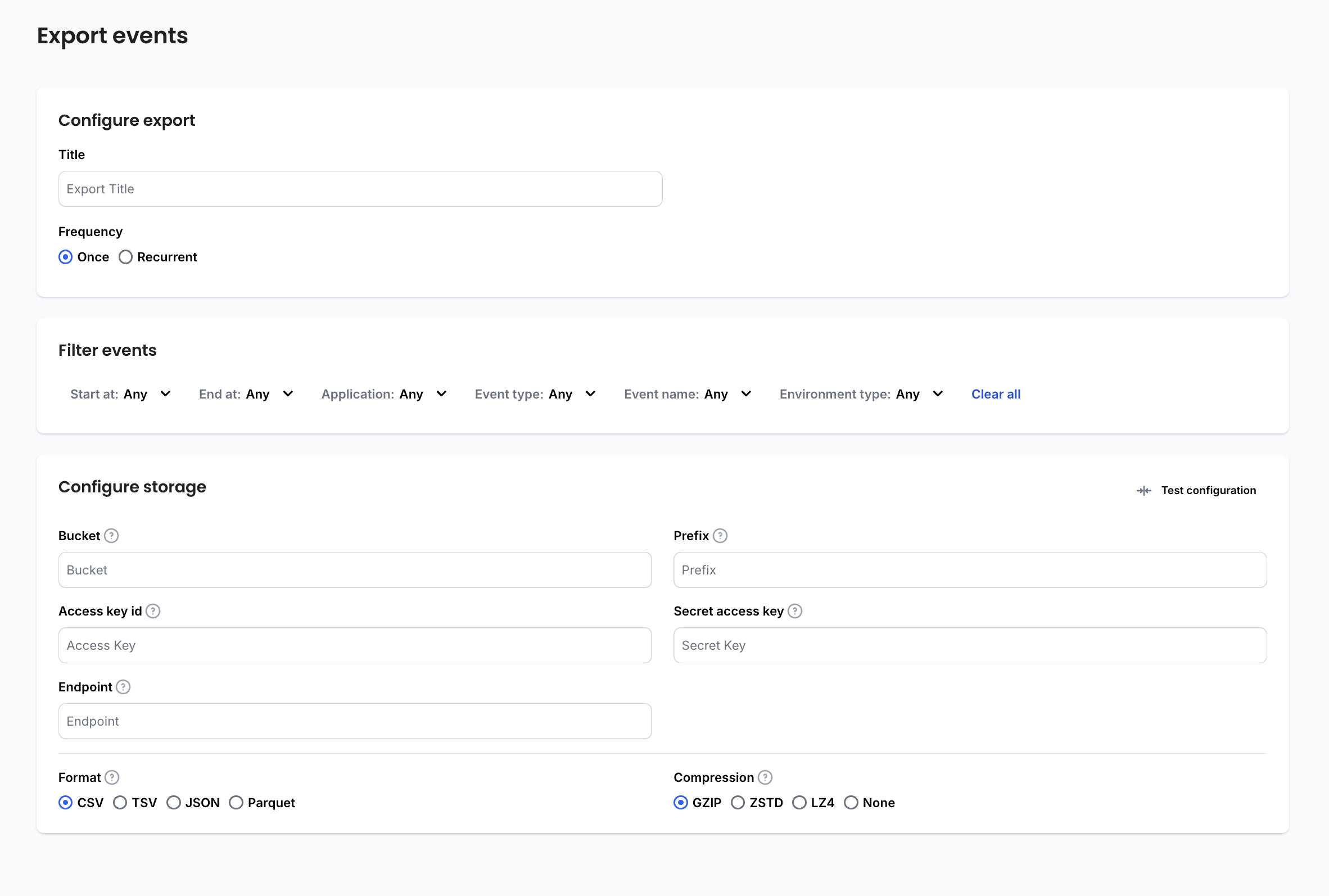
Here you will be able to set up an export configuration that runs either once, or recurrently.
Configure Export
The first step on the exporter form is to give your configuration a name and to select how often you want it to run. This can be once, hourly, daily, weekly or monthly.
Filter Events
As mentioned in the Filter Events section, you can filter
your events to fine tune what kind of events are exported. The Start At
field is required and is the date and time of the earliest event that you want
to export. For recurring exports, after the first export, the Start At event
will be the next event after the last one that was previously exported.
Configure Storage
The Configure Storage section is where you will input the details of your
storage bucket. The fields are described in the following table:
| Field Name | Description |
|---|---|
| Bucket | The name of the object storage bucket to export into. |
| Prefix | The prefix of the exported filename, which can include / to denote "sub-folders". |
| Access Key ID | The access key id of for the object storage bucket. |
| Secret Key | The secret access key for the object storage bucket. |
| Endpoint | The S3-compatible endpoint to connect to the object storage bucket. Examples: AWS: https://s3.amazonaws.com GCP: https://storage.googleapis.com |
| Format | The format of the exported data. CSV and TSV include a header row with column names. JSON is a newline-delimited JSON file. Parquet is a very efficient column oriented storage format. |
| Compression | The compression method to use. GZIP is widely supported and provides good compression. ZSTD is similar to GZIP in compression level but faster and less widely supported. LZ4 is much faster but provides slightly less compression. None is no compression. |
- Go to the Cloud Storage Settings page in the Google Cloud Platform Console.
- In Settings, select Interoperability.
- If interoperability has not been set up yet, click Enable Interoperability Access.
- Click Create new key.
Once all of these fields have been filled, you must use the Test Configuration
button to make sure that the fields have been filled correctly. If the test is
successful, you can click the Export Events button to start exporting!