Create a new Metric
To create a new metric, navigate to the Metric's catalog and click on Create metric
Global Settings
| Field | Description |
|---|---|
| Metric name | This name of the metric must be unique across the entire platform. |
| Owners | The list of team and individual owners for this metric. |
Metric's global settings are shared across all versions of a metric. Future changes to those fields will apply to all existing and future versions of a metric.
Details & Metadata
The Metric details and Metadata sections provide some advanced information about the metric. This information is version-specific and, as such, can differ between different versions of the same metric.
| Field | Description |
|---|---|
| Description | Providing a good description is important as it helps experiments choose the right metric. |
| Impact | Directionality of the metric. positive means that increasing this metric is good. negative means that decreasing the metric is good. Use unknown if the metric has no preferred direction. |
| Metric type | Describes how the metric is implemented. Choose between count, goal unique count, ratio, property, retention, time to achievement and unique property count. |
| Tags (optional) | Makes the metric more discoverable by providing relevant tags. |
| Category (optional) | The category the metric belongs to (conversion, performance, etc). While optional, selecting a category makes it easier for experimenters to find relevant metrics. |
| Applications (optional) | Select the applications where this metric makes sense. Only experiments running on these applications should track this metric. While optional, setting the correct Application(s) helps experimenters find relevant metrics for their experiments. |
| Units (optional) | Select the tracking units for which this metric is computed. The tracking unit of the metric should match the tracking unit of the experiments where it is tracked. While optional, setting the correct Tracking Unit(s) will help experimenters track relevant metrics in their experiments. |
Goal
In this section, you can select and configure the goal which provides the raw data for this metric.
This part of a metric’s setup is version-controlled.
To edit those fields, a new version of the metric will need to be created.
// Triggered when a visitor buys a product
context.track("purchase", {
  price: 1000,
  currency: 'euro',
  order_number: '0000982532',
  product_id: "ABC123",
  category_id: 'ZYZ123'
});
Goal
Select the goal to use as a source for this metric.
In the example above, the name of the goal is purchase.
If you don't see a goal in the list, make sure it exists and make sure you have the correct permissions to view and use it.
Auto-created goals do not have an owner when created. For governance reasons, make sure to claim ownership of a goal before you start using it for your metric.
Property
In the case of Property or Unique Property Count metrics,
you also need to choose which property of the metric to use.
For example, a revenue metric built using the goal event above, would use the event property price.
Property filters
Property filters let you include only the goal events whose properties match specific conditions.
These filters apply to the properties inside the event payload.
With the example above, we might want to create a conversion metric but only for product of a certain category,
in that case a category_id property filter can be used to filter only the relevant purchases events.
From that event, we could also create a revenue (euro) metric by filtering events by currency.
Time filters
Every visitor becomes exposed to an experiment at a specific moment. We call it the first-seen event. That timestamp is the reference point for all time-based filters.
A time filter lets you include only the goal events that happen within a defined window after that first exposure.
This ensures your metric measures behavior in a controlled, meaningful period (for example, purchases within the first hour or engagement in the first 7 days).
If your metric uses CUPED, the lookback window must incorporate the time filter.
For example, if your metric measure conversions achieved 2 weeks after exposure then the CUPED lookback window must be at least 2 weeks.
Outliers
Outlier limits help control the influence of extreme metric values. They reduce noise and variance by capping values that sit outside a defined range to the value of the boundary.
You can choose one of four methods to manage outliers:
Outlier limits can reduce variance and make metrics more stable, but they also change the underlying data. When used incorrectly, they may hide meaningful effects or introduce bias in experiment results. Always ensure your limits reflect real-world constraints rather than engineering convenience, and avoid tuning them in response to specific experiment outcomes.
Unlimited
This is the default. This option applies no outlier treatment. All values are kept exactly as they appear in the event data. Use this option when you want full fidelity of raw data and are not concerned about extreme values skewing results.
Quantile
This method filters values based on chosen quantiles. You define a lower quantile and an upper quantile (for example, 0.05 and 0.95). Values below the lower quantile or above the upper quantile are capped to the limit.
Outliers capping is done using the full experiment population, so all variants have the same capping limits.
How it behaves with the sample purchase event:
If you set:
- Lower quantile: `0.05`
- Upper quantile: `0.95`

Then:
- If `1000` falls between the 5th and 95th percentile of all purchase prices, it is kept as it is.
- If `1000` is higher than the 95th percentile (for example if most prices are between 10 and 300),
it is capped to the upper quantile boundary's value.
Quantile filtering is useful when your data contains long tails or rare extreme highs.
Standard Deviation
This method caps values based on the mean and standard deviation of all observed values. You enter multipliers that determine how far from the mean the lower and upper limits should be.
The limits are calculated as:
- Lower limit: mean − (stdev × lower multiplier)
- Upper limit: mean + (stdev × upper multiplier)
Any value outside these limits is capped to the value of the boundary.
Outliers capping is done using the full experiment population so all variants have the same capping limits.
Example with the sample purchase event: Suppose across all purchases:
- mean price = 200
- standard deviation = 150

If you set:
- Lower multiplier = 1
- Upper multiplier = 2

Then:
- Lower limit = 200 − (150 × 1) = 50
- Upper limit = 200 + (150 × 2) = 500

Our event's price:
- 1000 > 500 → it is capped to 500.

Setting multipliers to 0 effectively disables trimming on that side:
- Lower multiplier 0 → lower limit = mean → keeps all values below the mean
- Upper multiplier 0 → upper limit = mean → keeps all values above the mean

Setting both to 0 is the equivalent of setting no outlier limit.
Standard deviation limits are helpful when extreme values are several standard deviations from the average.
Fixed
This option lets you define explicit numeric boundaries. Any value below the lower limit or above the upper limit is removed.
Example with the sample purchase event:
- Lower limit value: −1000
- Upper limit value: 1000

Then:
- price = 1000 → exactly at the upper limit → kept

If you change to:
- Lower limit value: 0
- Upper limit value: 500

Then:
- price = 1000 → above 500 → capped to 500
Fixed limits are useful when you already know the acceptable bounds for your metric (e.g., price can never be negative or above a business-defined maximum).
Goal Relations
Goal relations let you connect different goal events that represent follow-up actions on the same underlying item.
They are useful when events such as cancellations, refunds, or replacements should modify the way a metric is calculated.
For example, if a purchase is later refunded, you may want the refund event to reduce the revenue metric. Or if a purchased item is replaced with a different product, you may want to adjust the associated value.
Goal relations define how one goal (the current one) is linked to another goal (the foreign one) using a shared identifier. This identifier is provided through a property in both events (for example order_number, purchase_id, or transaction_id).
Each relation type has its own behaviour and additional fields.
Cancellation
A cancellation relation ties a “current” goal to a cancellation event belonging to the same item.
This is useful when the current goal should be counted only if it has not been cancelled.
This makes it possible to create metrics such as Net Conversions which only accounts for purchases which were not cancelled,
giving experimenters a more accurate view of the actual business impact of their changes.
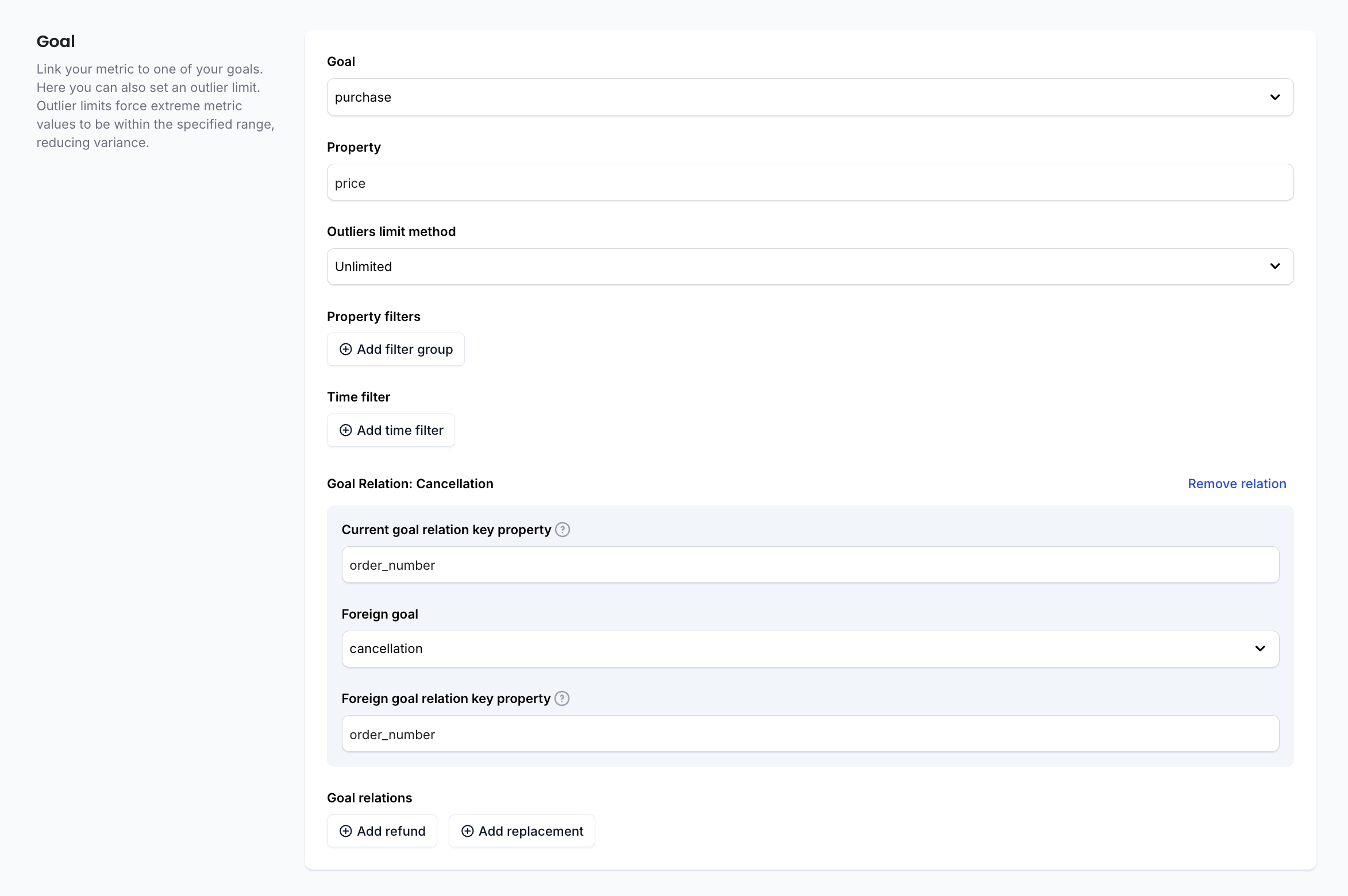
Below is a sample cancellation events cancelling the purchase event made above.
// Triggered when a visitor cancels a purchase
context.track("purchase_cancelled", {
  order_number: '0000982532'
});
To configure a cancellation relation, you need to provide:
- Current goal key property This is the property on the current goal event that identifies the item. Example for a purchase event: order_number.
- Foreign goal This is the goal event that represents the cancellation. Example: purchase_cancelled.
- Foreign goal key property This is the property on the cancellation event that refers to the same item. Example: also order_number.
When both events share the same key value, the cancellation will be applied to the current goal according to the metric’s logic (for example, removing the contribution of that purchase).
Refund
A refund relation is used when a purchase can generate one or more refund events that should adjust the metric.
Refund relations have additional configuration, as refund events may include both an identifier and a refund amount.
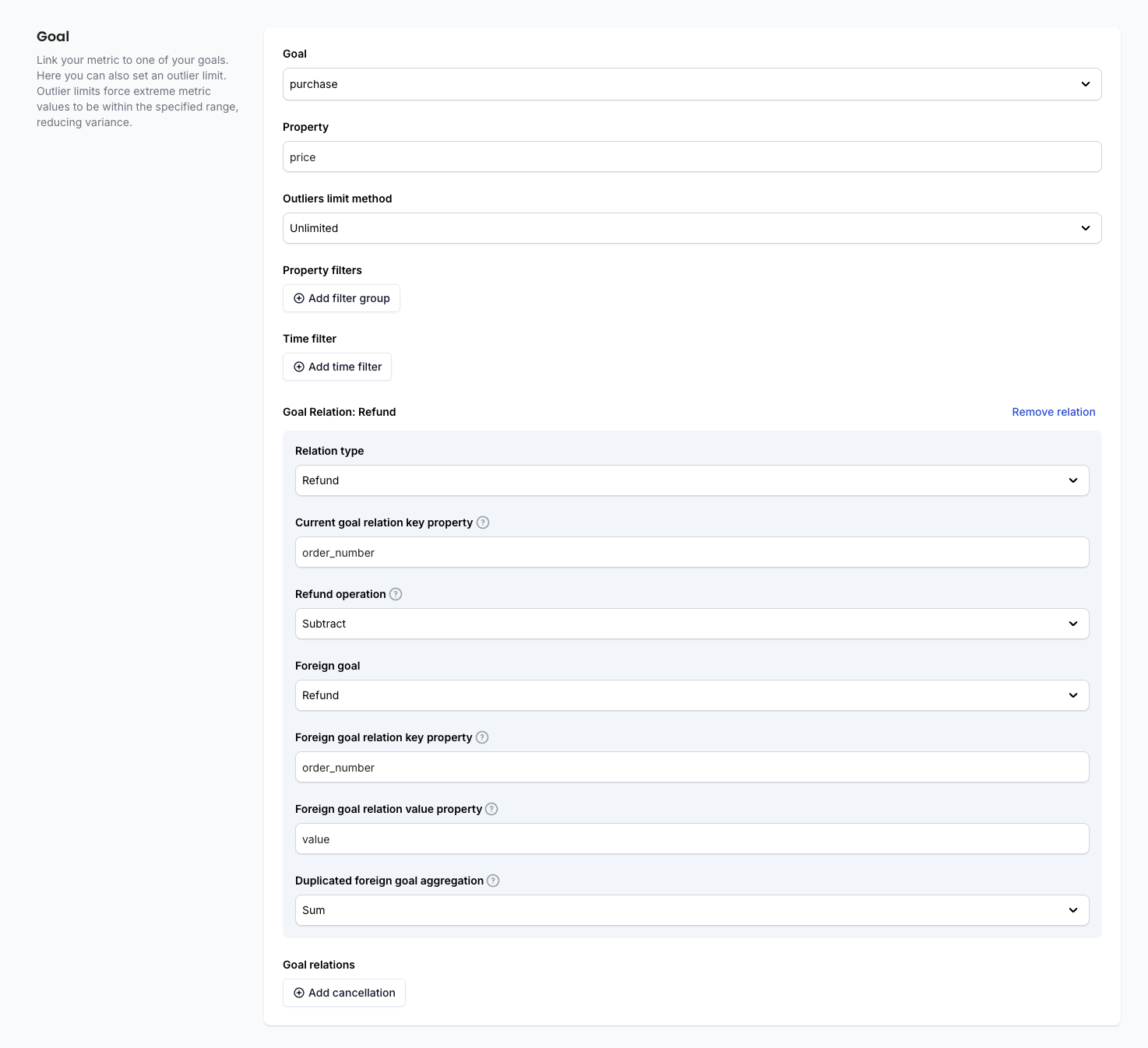
// Triggered when a visitor gets refunded
context.track("refund", {
  order_number: '0000982532',
  refund_amount: 1000,
});
To configure a refund relation, you define:
- Current goal key property The identifier on the current goal (order_number).
- Refund operation How the refund should affect the metric (for example, subtracting refunded value, replacing value, or another supported operation).
- Foreign goal The goal event representing the refund (refund).
- Foreign goal key property Identifier on the refund event used to match the purchase.
- Foreign goal value property The numeric value to use for the refund adjustment, such as refund_amount.
- Duplicated foreign goal aggregation Determines how to combine multiple refund events referring to the same item (sum, max, last, etc.).
This relation ensures that metrics involving values such as revenue reflect the impact of refunds accurately providing a more accurate view on the impact of the change.
Replacement
A replacement relation applies when the original event is substituted by another event of the same category. A typical use case is item replacements: a customer receives a replacement product instead of the original purchase.
Replacement relations allow the metric to use information from the new event rather than the original one.
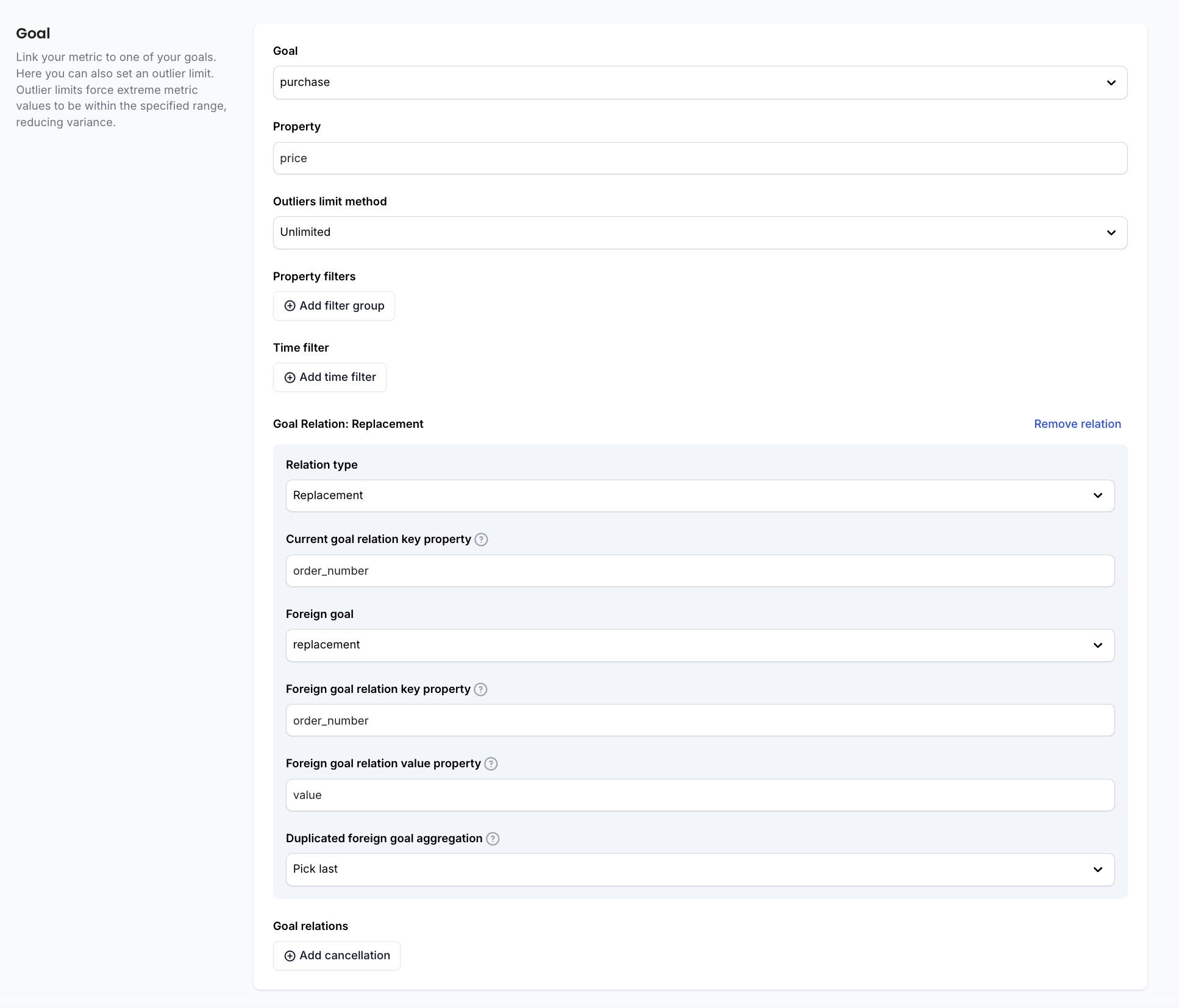
// Triggered when a visitor gets a replacement
context.track("replacement", {
  order_number: '0000982532',
  replacement_price: 800,
});
Configuration includes:
- Current goal key property Identifier on the current event (e.g., order_number).
- Foreign goal The event representing the replacement (e.g., replacement).
- Foreign goal key property The matching identifier on the replacement event (e.g., order_number).
- Foreign goal value property Value from the replacement event that should override or adjust the original. For example, replacement_price.
- Duplicated foreign goal aggregation How the value of the foreign goal achievement will be aggregated when there are multiple foreign goal achievements that match the Foreign goal relation key property.
There are five options:
| Aggregation Type | Description |
|---|---|
| Pick first | The first foreign goal achievement will be used to update the value of the current goal. |
| Pick last | The last foreign goal achievement will be used to update the value of the current goal. |
| Sum | The sum of all foreign goal achievements will be used to update the value of the current goal. |
| Minimum | The minimum value of all foreign goal achievements will be used to update the value of the current goal. |
| Maximum | The maximum value of all foreign goal achievements will be used to update the value of the current goal. |
Replacement relations allow the metric to reflect up-to-date values when items are swapped or reissued.
Variance reduction
If applicable, you can enable CUPED for this metric to help reduce variance. Enable CUPED for this metric by checking the checkbox and choose a lookback period which matches the user behaviour.
Format, scale and precisions
This section controls how your metric’s Value and Mean are displayed in the results table. It does not change how the metric is calculated: it only affects the formatting applied when values are shown in the metric's tables.
This part of a metric’s setup is version-controlled.
To edit those fields, a new version of the metric will need to be created.

You can customise three aspects for both Value and Mean:
- Format
- Scale
- Precision
These settings allow you to present the metric in a readable and meaningful way depending on the type of data (counts, currency, percentages, ratios, etc.).
Value
The Value column in the results table displays the total summed value of your metric for each variant. You can control how this number appears using:
Format
A string template that determines how the number is wrapped or displayed. For example:
{}→ shows the raw number{} €→ appends a currency symbol$ {}→ prefixes a dollar sign{} items→ useful for quantity metrics
Scale
A multiplier applied before formatting the output. Common uses:
1→ show the value as-is0.01→ convert cents to euros100→ convert a ratio to a percentage during display
Example: If the raw total value is 1500.123456 and scale is 1, the displayed value might be 1,500.
Precision
How many decimal places to show. Examples:
0→ no decimals (ideal for counts)2→ two decimals (useful for money)3→ three decimals (fractions, averages, conversion rates)
Mean
The Mean column displays the average metric value per participant for each variant. You can format it separately because mean values often need different formatting than totals (e.g., percentages vs absolute numbers).
Format
Same behaviour as for Value. Examples:
{}→ raw{}%→ percentage${}→ currency
Scale
Scale is especially important for means:
For conversion rate metrics, raw mean tends to be a ratio (0.0485). With scale = 100, it becomes 4.85.
For monetary means, if your underlying value is in cents, scaling by 0.01 converts to dollars or euros.
Precision
How many decimal places to show. Examples:
0→ no decimals (ideal for counts)2→ two decimals (useful for money)3→ three decimals (fractions, averages, conversion rates)
Metric threshold alert
A metric threshold alert notifies you when the observed effect of a metric crosses a value you consider important. Instead of waiting for full statistical significance, the alert triggers as soon as the relative effect becomes large enough (either positively or negatively) to matter.
The alert works by watching the confidence interval (CI) of the impact.
This part of a metric’s setup is version-controlled.
To edit those fields, a new version of the metric will need to be created.
Falls below threshold
Use this when you want to be alerted if the experiment becomes worse than a certain relative value.
For example:
- Threshold: -2%
- Alert triggers when: upper CI bound < -2%
This means even the optimistic estimate is still worse than –2 percent, so the effect could be harmful. In this case and to prevent further loss it might be worth stopping the experiment and investigating what is happening.
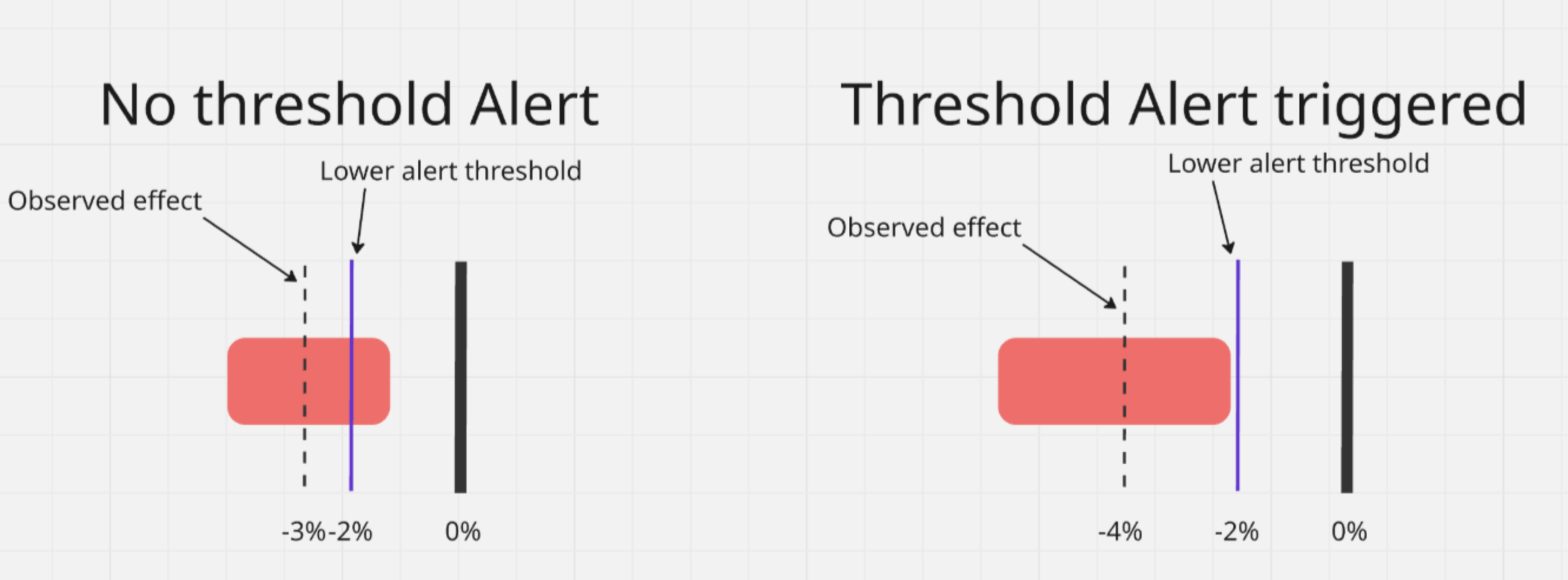
This can help you detect dangerous regressions early.
Rises above threshold
Use this when you want to be notified if the experiment becomes better than a certain value.
For example:
- Threshold: +5%
- Alert triggers when: lower CI bound > +5%
This indicates that even the conservative estimate of the effect exceeds your target improvement.