Get Started with Warehouse Native
Warehouse Native lets you run experiments directly on data that lives in your own data warehouse. Instead of sending events to ABsmartly's collectors, you point ABsmartly at your existing tables — exposures, goals, and attributes — and it takes care of the rest.
This guide covers connecting and configuring a data source. If you're deciding between Hybrid and Fully Warehouse Native first, read Warehouse Native Modes.
Getting started takes three steps:
- Connect to your data warehouse — set up credentials and test the connection
- Map your tables — tell ABsmartly which columns hold exposures, goals, and attributes
- Configure data freshness — define how often ABsmartly should query for new data
Step 1: Connect to your data warehouse
To begin, navigate to Settings → Data Sources and click Add data source.
Every installation ships with a built-in default data source, managed by ABsmartly. In Hybrid mode you keep this default and add external data sources for your goals. In Fully mode your own warehouse becomes the default. Exposure events always come from the default data source, so which one is the default determines your mode.
You'll see a form with two sections: general information about the data source, and the connection credentials specific to your warehouse type.
General information
Start by giving your data source a name and an optional description. The name will be used throughout ABsmartly to identify this connection, so pick something recognizable (e.g., "Production BigQuery" or "Analytics Snowflake").
Choose your warehouse type
Select your warehouse from the Database type dropdown. ABsmartly supports five warehouse types — follow the guide for yours:
Each guide walks you through the specific credentials needed and how to test the connection.
Once connected, save the data source and move on to mapping your tables.
Step 2: Map your tables
With your warehouse connected, the next step is to tell ABsmartly where your experiment data lives. You'll map three types of tables: exposures, goals, and optionally attributes.
For each table, you can either use the Column mapping tab to select columns from a dropdown, or switch to the SQL query tab to write a custom query.
Exposures always come from the default data source, so the exposure mapping below matters most on whichever data source is your default. On an external (non-default) data source used in Hybrid mode, you'll typically map only the goals table — exposures are brought in automatically through the Exposures import setup rather than mapped here.
Exposure table
The exposure table tracks experiment assignments — which unit was exposed to which variant of which experiment, and when.
Select your table from the External table name dropdown. ABsmartly will read the table's schema and populate the column dropdowns automatically.
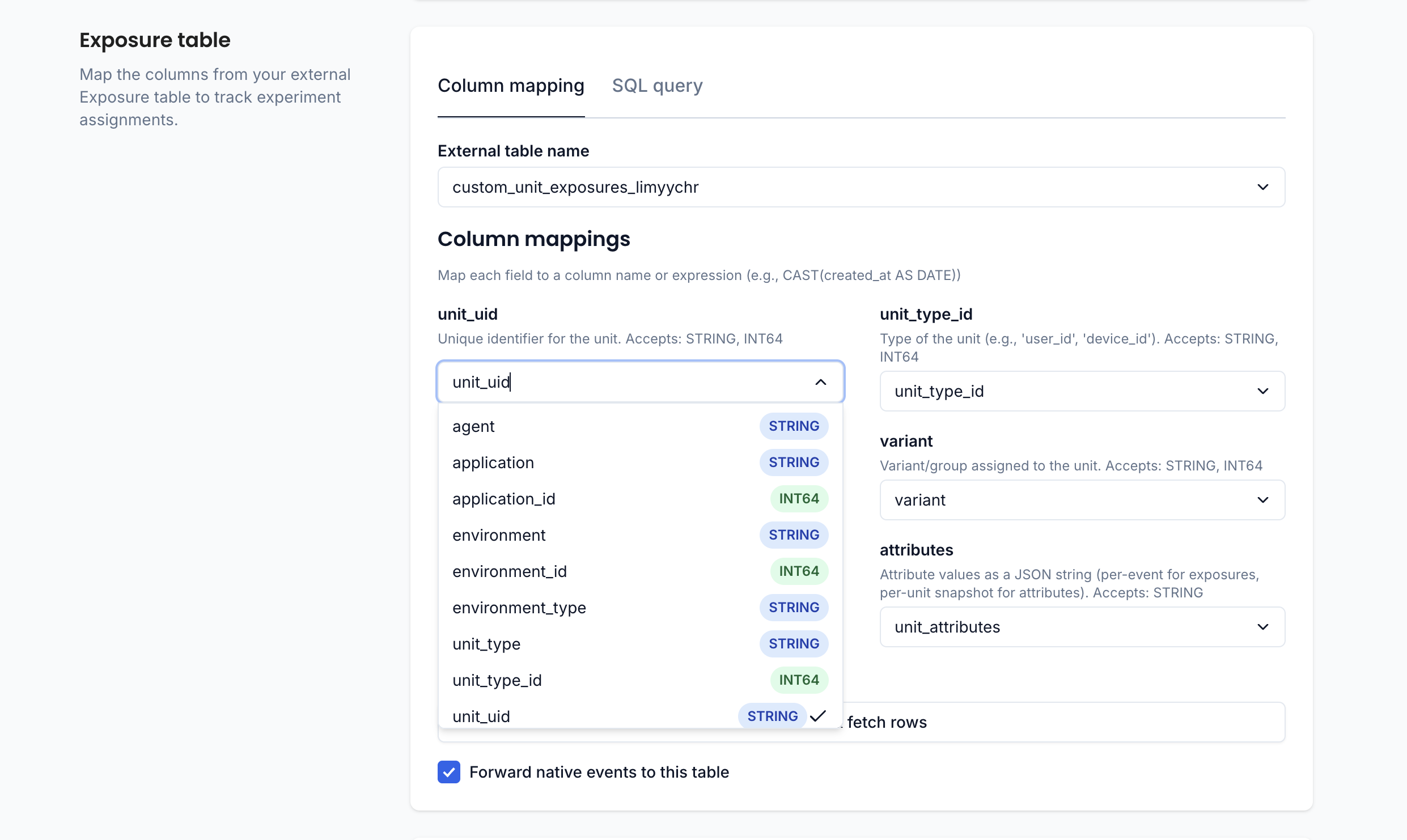
Map each field to the corresponding column in your table:
| Field | Description | Accepted types |
|---|---|---|
| unit_uid | Unique identifier for the unit | STRING, INT64 |
| unit_type_id | Type of the unit (e.g., user_id, device_id) | STRING, INT64 |
| experiment_id | Unique identifier for the experiment | STRING, INT64 |
| variant | Variant/group assigned to the unit | STRING, INT64 |
| exposed_at | Timestamp when the exposure occurred | INT64 (milliseconds) |
| attributes | Attribute values as a JSON string | STRING |
Column names don't have to match exactly — ABsmartly lets you map any column (or expression) to each field. For example, you could use CAST(created_at AS INT64) for the exposed_at field.
Once all fields are mapped, click Test & fetch rows to validate the mapping. ABsmartly will fetch a sample of 10 rows so you can verify the data looks right.
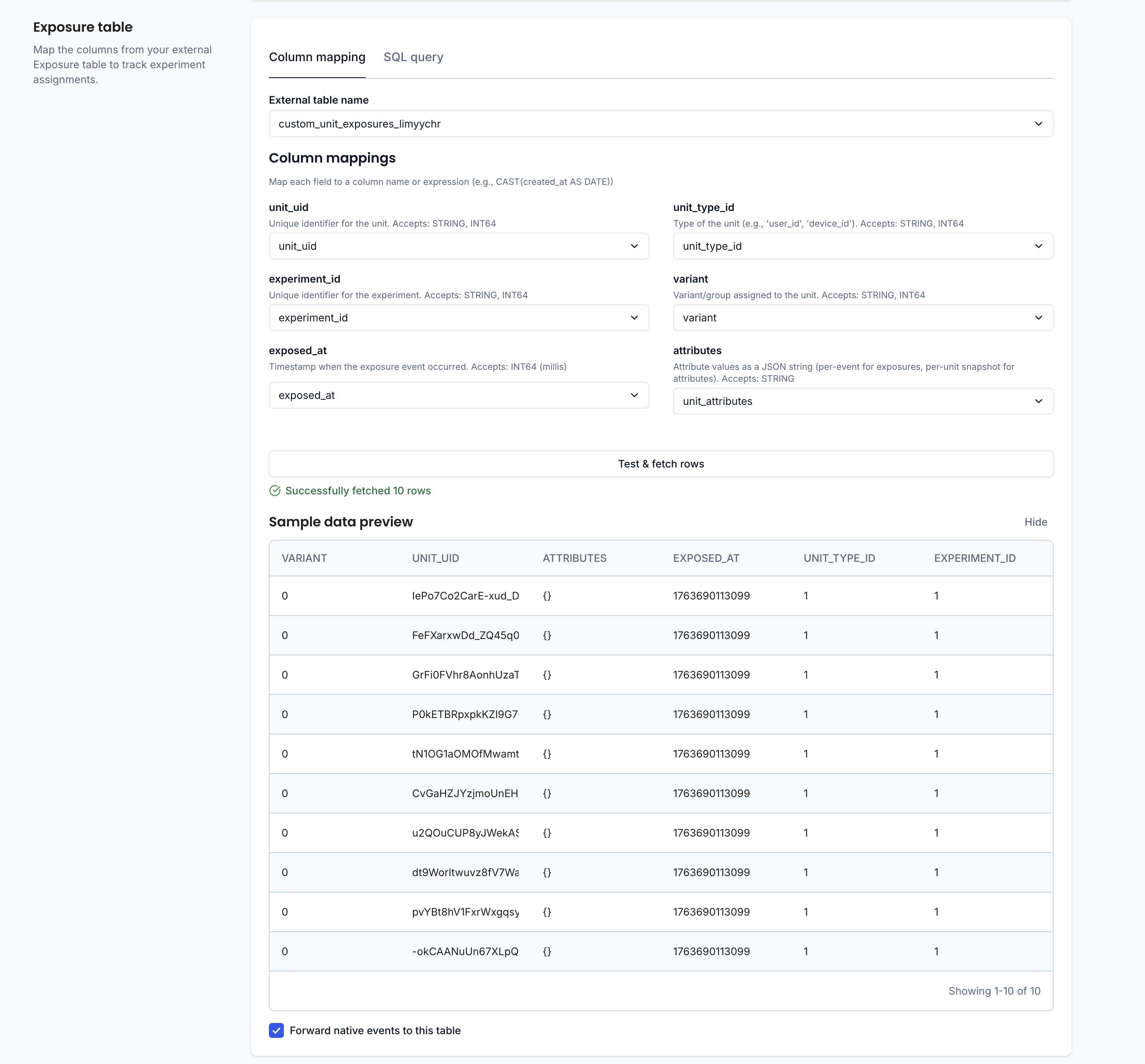
You'll also see a "Forward native events to this table" checkbox. Enable this if you want ABsmartly to write SDK-generated exposure events back into this warehouse table, keeping everything in one place.
Goals table
The goals table contains your conversion and metric events — the outcomes you're measuring in your experiments.
Map the following fields:
| Field | Description | Accepted types |
|---|---|---|
| goal_id | Unique identifier for the goal/conversion event | STRING, INT64 |
| unit_uid | Unique identifier for the unit | STRING, INT64 |
| unit_type_id | Type of the unit (e.g., user_id, device_id) | STRING, INT64 |
| achieved_at | Timestamp when the goal was achieved | INT64 (milliseconds) |
| properties | Additional goal properties as a JSON string | STRING |
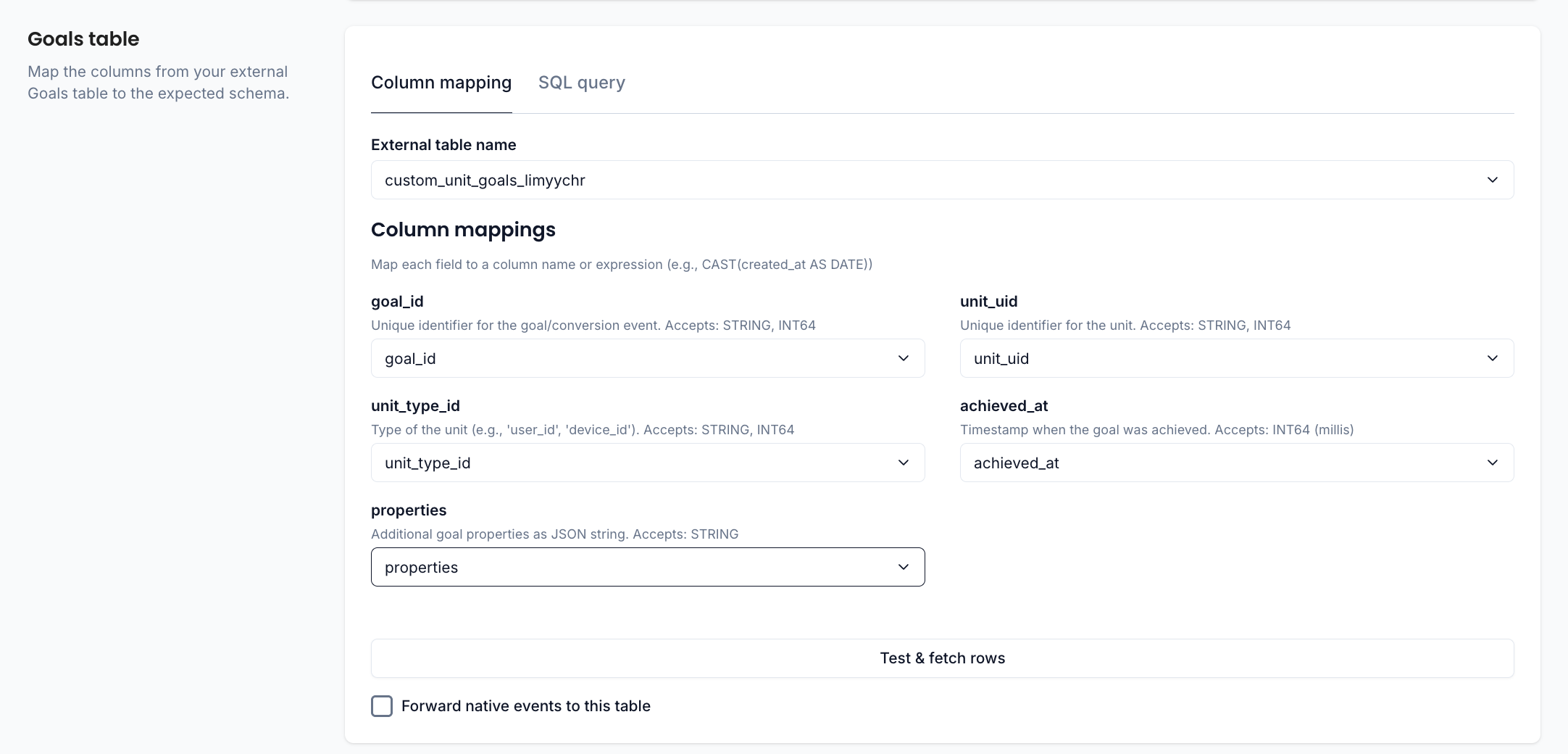
As with the exposure table, click Test & fetch rows to validate, and optionally enable "Forward native events to this table" for SDK-generated goal events.
Attributes table (optional)
The attributes table holds per-unit attribute snapshots used for filtering or segmenting experiments. This table is optional — skip it if you don't have an attributes source for this data source.
Map the following fields:
| Field | Description | Accepted types |
|---|---|---|
| unit_uid | Unique identifier for the unit | STRING, INT64 |
| unit_type_id | Type of the unit (e.g., user_id, device_id) | STRING, INT64 |
| set_at | Timestamp when the attribute snapshot was set | INT64 (milliseconds) |
| attributes | Attribute values as a JSON string | STRING |
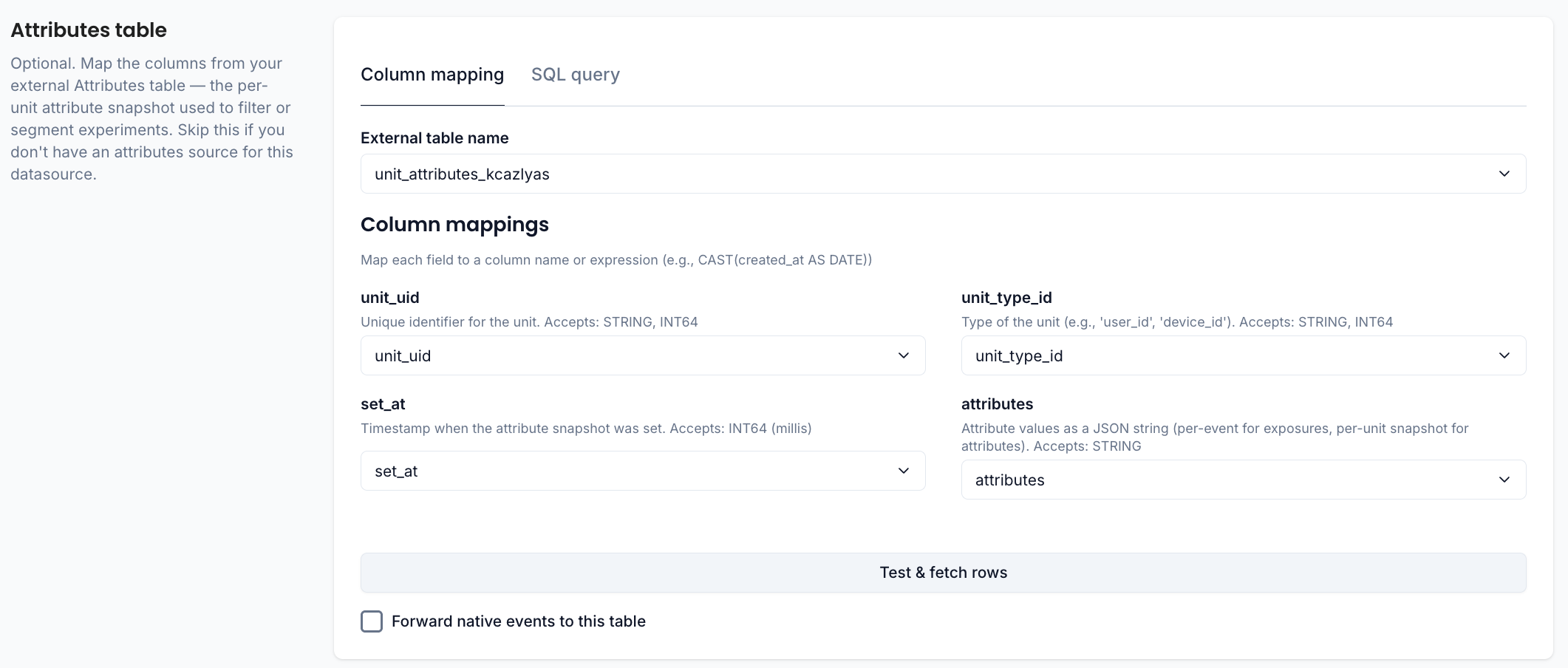
JSON layouts table
ABsmartly uses a json_layouts table to power auto-complete for JSON properties in the metric editor. When you're defining metrics that reference goal properties or attributes, this table tells ABsmartly which JSON keys exist, their types, and where they were observed — so you get suggestions instead of typing paths from memory.
ABsmartly looks for a json_layouts table with six columns (key, source, source_id, phase, value_type, event_at) in your data source's default location. If it finds one with the expected schema, you'll see a green confirmation:

If the table doesn't exist yet, ABsmartly will show a warning and offer two options:
- Create the table — ABsmartly creates a
json_layoutstable for you (save the data source first) - Use an existing table — map your own table's columns to the expected schema

If you choose to map an existing table, you'll see the column mapping interface:
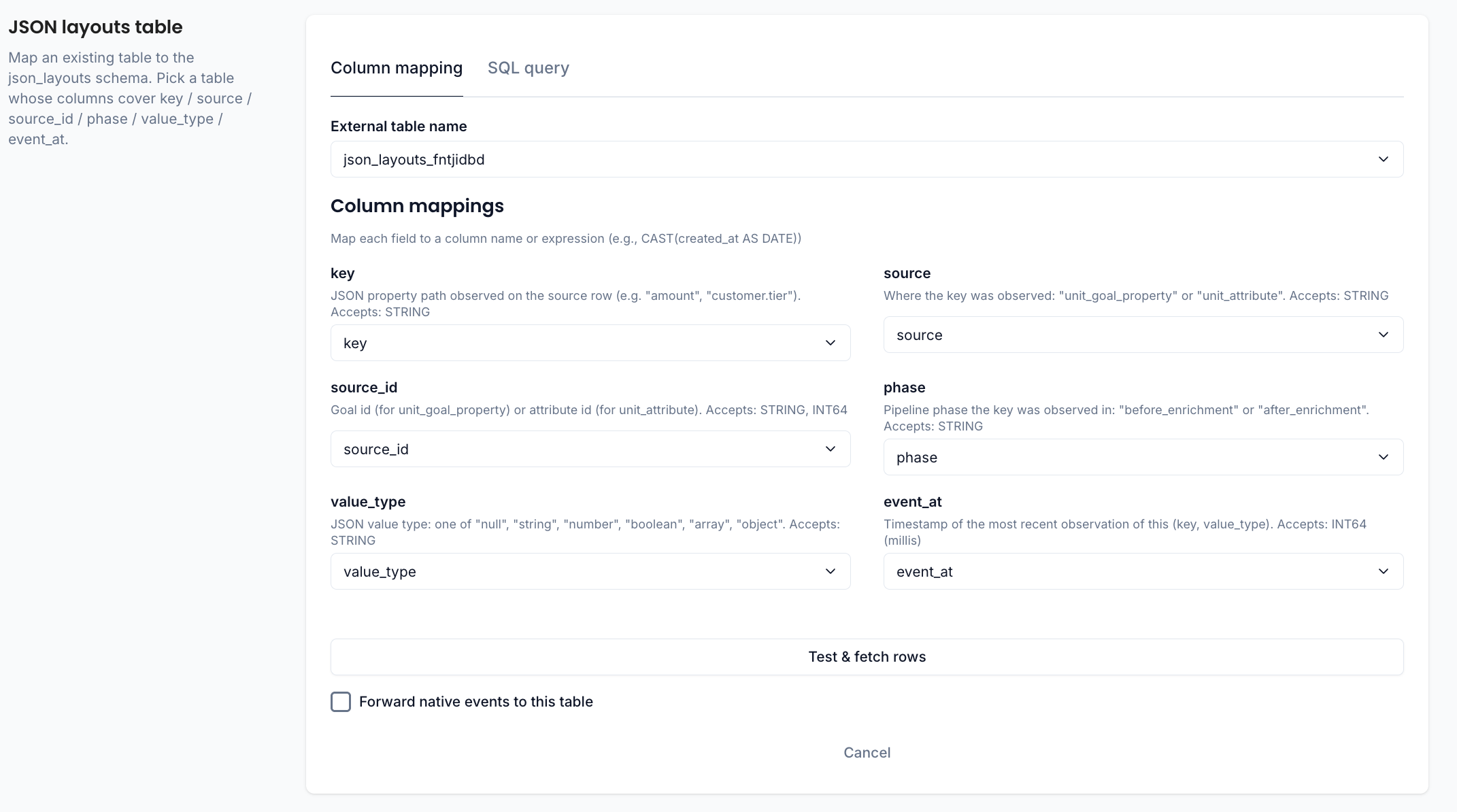
| Field | Description | Accepted types |
|---|---|---|
| key | JSON property path (e.g., amount, customer.tier) | STRING |
| source | Where the key was observed: unit_goal_property or unit_attribute | STRING |
| source_id | Goal ID (for goal properties) or attribute ID (for attributes) | STRING, INT64 |
| phase | Pipeline phase: before_enrichment or after_enrichment | STRING |
| value_type | JSON value type: null, string, number, boolean, array, or object | STRING |
| event_at | Timestamp of the most recent observation (milliseconds) | INT64 |
Without this table, experiments will still work — but JSON-property auto-complete will be empty for goals and attributes on this data source, requiring manual entry when configuring metrics.
Step 3: Configure data freshness
Finally, tell ABsmartly how often your warehouse receives new data so it can query at the right times.
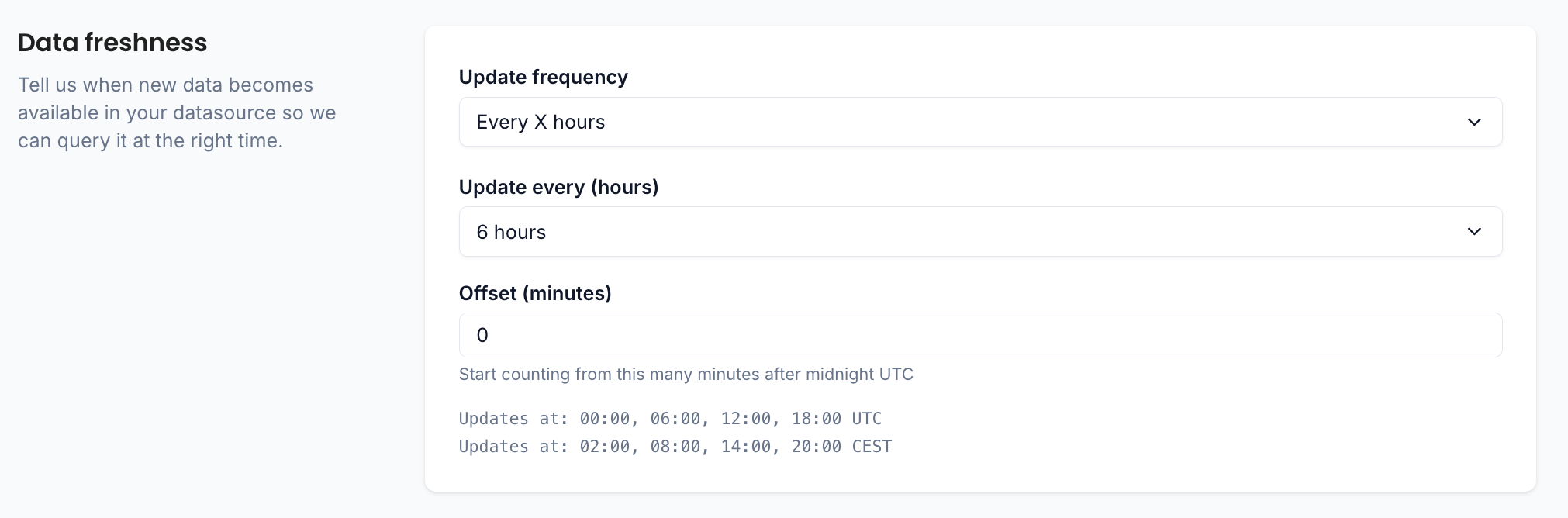
Choose an Update frequency that matches how often your ETL pipeline lands new data:
| Frequency | Best for | What you configure |
|---|---|---|
| Every X minutes | Near real-time pipelines or streaming ingestion | Interval in minutes |
| Every X hours | Regular batch ETL jobs (e.g., every 6 hours) | Interval in hours |
| Daily at specific time | Once-a-day loads | Offset in minutes from midnight UTC |
For all frequency types, use the Offset (minutes) field to control when the schedule starts counting from. This is the number of minutes after midnight UTC.
ABsmartly will show a preview of the computed schedule in both UTC and your local timezone. For example:
- Every 6 hours with offset 0 → Updates at 00:00, 06:00, 12:00, 18:00 UTC
- Daily with offset 480 → Updates at 08:00 UTC (10:00 CEST)
Match the frequency to your actual ETL schedule. If your data lands once a day at 8 AM UTC, use Daily at specific time with a 480-minute offset. Querying more often than data arrives just adds unnecessary load to your warehouse.
Save the data source. If you're setting up Fully Warehouse Native and this warehouse is your default data source, you're done - ABsmartly will start querying your warehouse on the configured schedule and your experiment data will flow through automatically. The built-in ABsmartly-managed default data source needs no such configuration, since it isn't a warehouse of yours. If you're connecting an external data source for Hybrid mode, continue to Step 4.
Step 4: Configure exposures import (Hybrid only)
This step only applies to external (non-default) data sources — the setup used in Hybrid Warehouse Native. If your warehouse is the default data source, you can skip it.
In Hybrid mode, a goal can live in an external warehouse, but exposures come from the default data source (managed by ABsmartly). To compute metrics for such a goal, ABsmartly needs to make those exposures available to your external warehouse. It does this through an object store that you provide - you point ABsmartly at a storage location it can use, and your warehouse reads the exposures from there.
The Exposures import section configures that storage location:
| Field | Description |
|---|---|
| Object store URL | The bucket/prefix ABsmartly uses to stage exposures for your warehouse. The accepted scheme depends on your warehouse (for example, gs:// for BigQuery, s3:// for Redshift, and s3://, gs://, or azure:// for Snowflake). |
| Credentials | The access needed to read and write that location — an access key/secret for BigQuery and ClickHouse, a stage name for Snowflake, an IAM role ARN for Redshift. Databricks needs no extra credentials. |
Staged files are cached and reused for a short window, then cleaned up automatically — no manual cleanup is required. For defense in depth, you can also add a bucket lifecycle rule (e.g. "delete objects older than 1 day") as a backstop.
Save the data source once the exposures import is configured. ABsmartly will then query your warehouse on the configured schedule, evaluating your externally-sourced goals against the exposures automatically.
In Fully Warehouse Native, your warehouse is the default and already holds the exposures, so this step doesn't apply.