Connect to ClickHouse
Navigate to Settings → Data Sources and click Add data source. Give your data source a name and optional description, then select ClickHouse from the Database type dropdown.
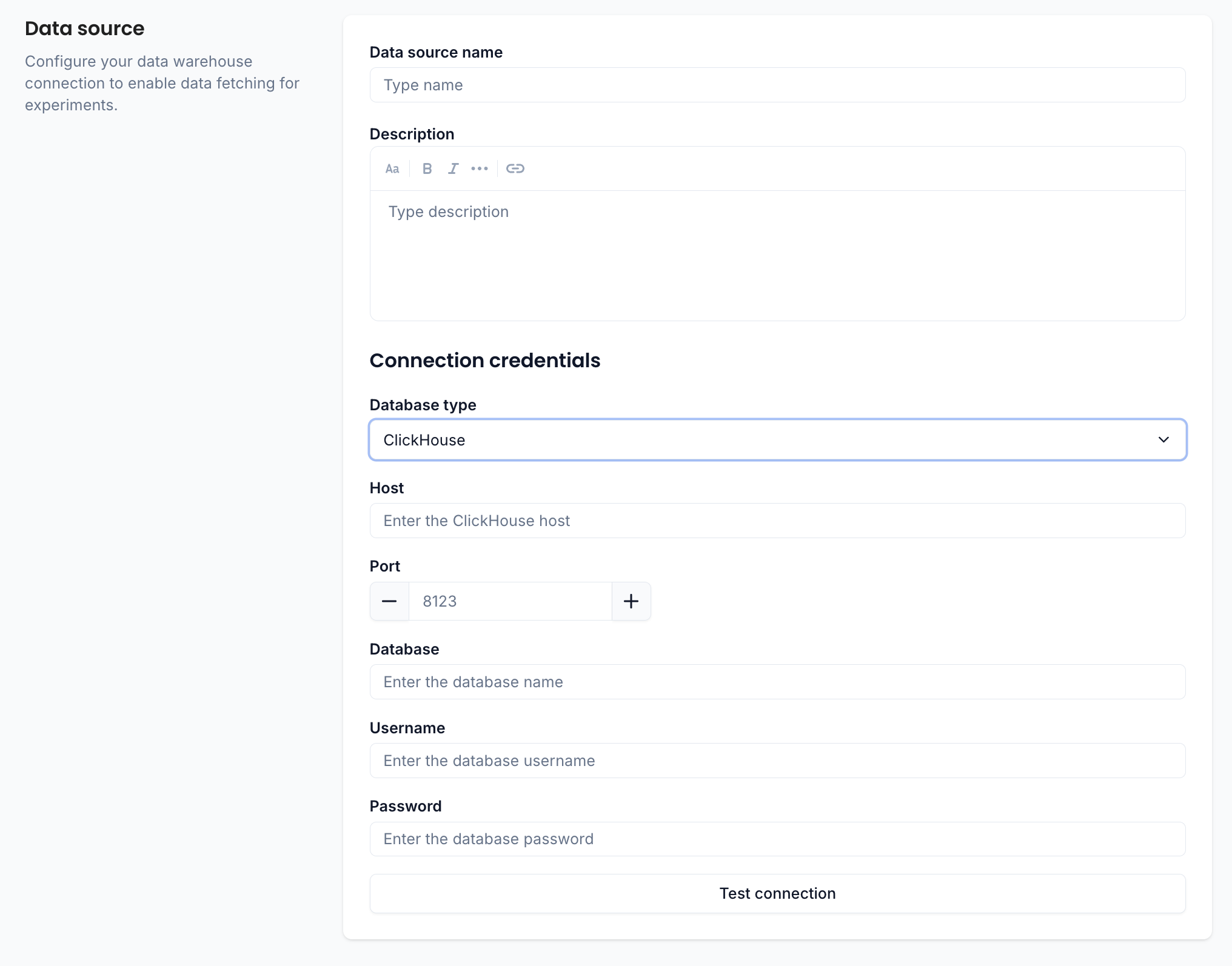
Connection credentials
| Field | Description |
|---|---|
| Host | The ClickHouse server hostname |
| Port | Connection port (default: 8123) |
| Database | The database containing your experiment tables |
| Username | Database username |
| Password | Database password |
Test the connection
Click Test connection at the bottom of the form. If everything is configured correctly, you'll see a green "Connected" confirmation.
note
If the test fails, double-check your credentials and make sure ABsmartly's IP addresses are allowed through your ClickHouse firewall or network policies.
Once connected, save the data source and proceed to map your tables.