Connect to Redshift
Navigate to Settings → Data Sources and click Add data source. Give your data source a name and optional description, then select Redshift from the Database type dropdown.
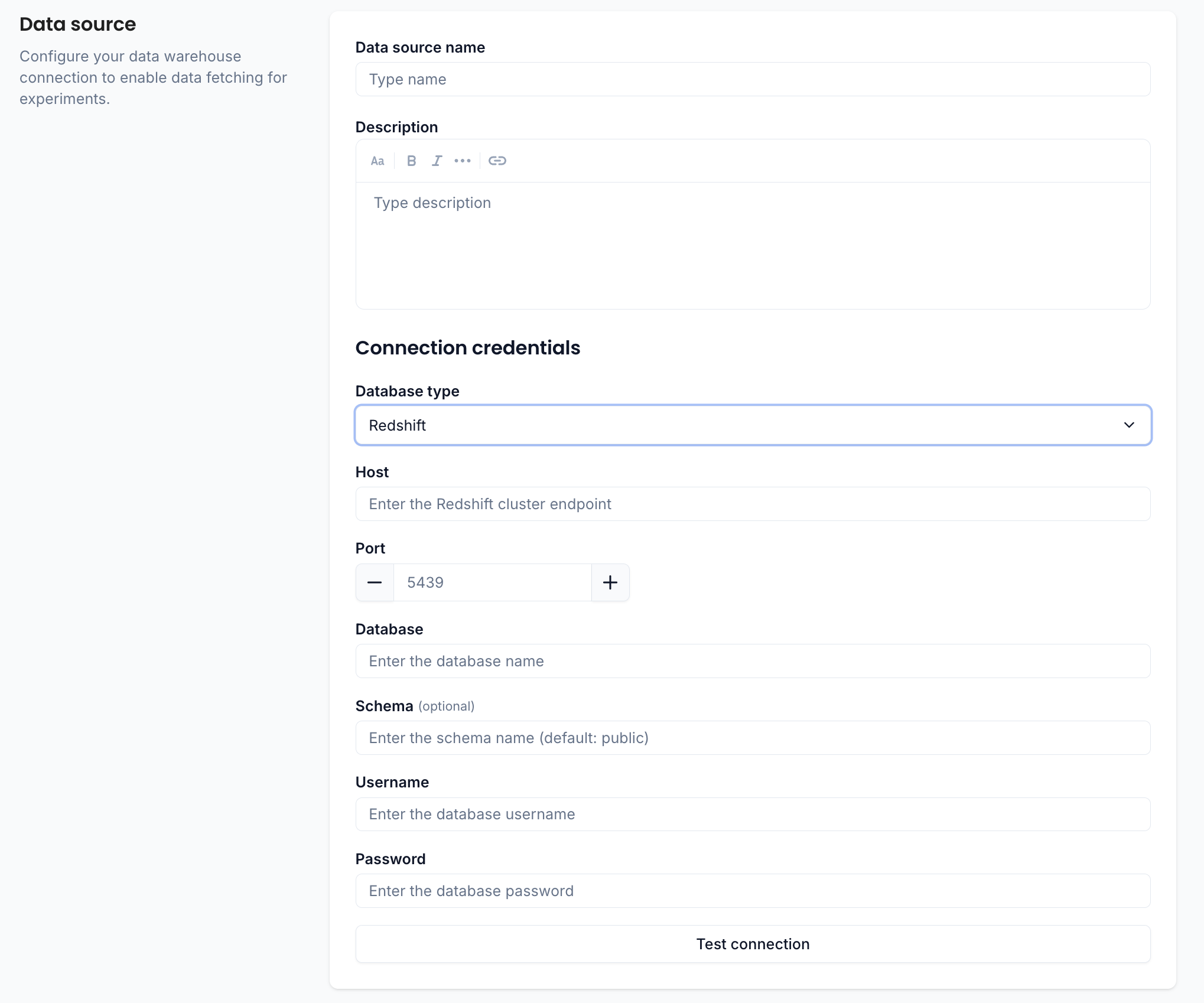
Connection credentials
| Field | Description |
|---|---|
| Host | The Redshift cluster endpoint |
| Port | Connection port (default: 5439) |
| Database | The database containing your experiment tables |
| Schema (optional) | The schema to use. Defaults to public if not specified |
| Username | Database username |
| Password | Database password |
Test the connection
Click Test connection at the bottom of the form. If everything is configured correctly, you'll see a green "Connected" confirmation.
note
If the test fails, double-check your credentials and make sure ABsmartly's IP addresses are allowed through your Redshift cluster's security groups and VPC settings.
Once connected, save the data source and proceed to map your tables.