Connect to BigQuery
Google Cloud prerequisites
Before connecting ABsmartly to BigQuery, you need a Google Cloud service account with the right permissions. The steps below walk through creating one from scratch.
1. Enable the BigQuery API
In the Google Cloud Console, open the project that contains your BigQuery dataset and navigate to APIs & Services → Library. Search for BigQuery API and enable it if it isn't already.
2. Create a service account
- Go to IAM & Admin → Service Accounts and click Create service account.
- Give it a name (e.g.,
absmartly-warehouse) and an optional description, then click Create and continue. - Skip the optional step of granting users access to the service account, then click Done.
3. Grant permissions
ABsmartly needs two roles:
| Role | Where to grant it | Why |
|---|---|---|
BigQuery Data Viewer (roles/bigquery.dataViewer) | On the dataset | Allows reading your experiment tables |
BigQuery Job User (roles/bigquery.jobUser) | On the project | Allows running queries |
If you've enabled "Forward native events to this table" on your exposures or goals table, ABsmartly also needs to write data back. In that case, replace BigQuery Data Viewer with BigQuery Data Editor (roles/bigquery.dataEditor) on the dataset.
To grant dataset-level access, open BigQuery Studio, select the dataset, click Sharing → Permissions, and add the service account email with the appropriate role. To grant the project-level Job User role, go to IAM & Admin → IAM, click Grant access, paste the service account email, and assign roles/bigquery.jobUser.
4. Create and download the service account key
- In IAM & Admin → Service Accounts, click the service account you just created.
- Go to the Keys tab and click Add key → Create new key.
- Select JSON and click Create. A
.jsonfile will download automatically.
This is the file you'll paste into the Service Account Credentials field in ABsmartly.
Add the data source in ABsmartly
Navigate to Settings → Data Sources and click Add data source. Give your data source a name and optional description, then select BigQuery from the Database type dropdown.
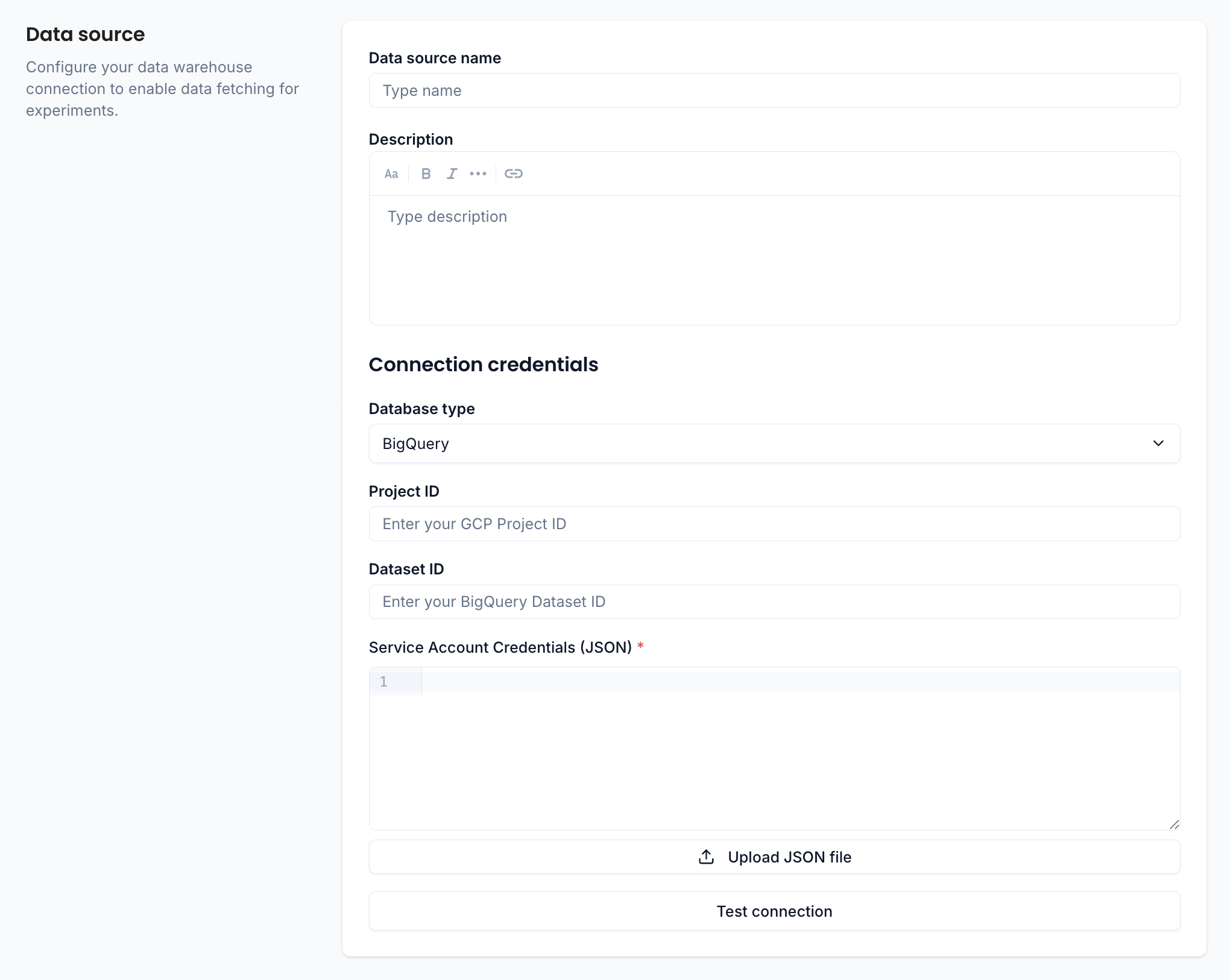
Connection credentials
| Field | Description |
|---|---|
| Project ID | Your GCP project ID |
| Dataset ID | The BigQuery dataset containing your experiment tables |
| Service Account Credentials (JSON) | A GCP service account key in JSON format. You can paste the JSON directly into the editor or use the Upload JSON file button. This field is required. |
Create a dedicated service account with read-only access to the relevant dataset. Don't reuse a service account that has broader permissions than necessary.
Test the connection
Click Test connection at the bottom of the form. If everything is configured correctly, you'll see a green "Connected" confirmation.
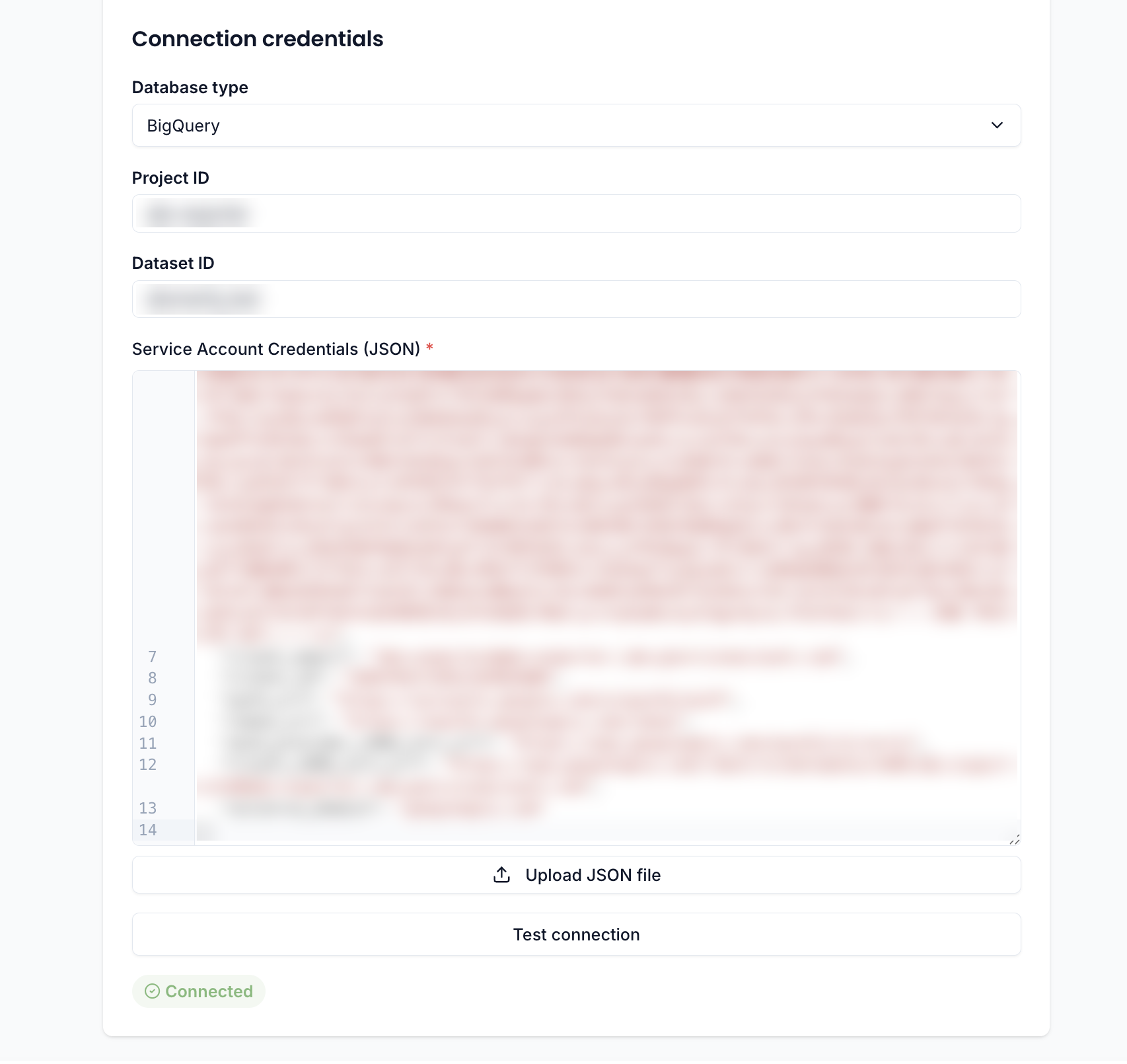
If the test fails, double-check your credentials and make sure ABsmartly's IP addresses are allowed through your BigQuery project's network policies.
Once connected, save the data source and proceed to map your tables.